The Ultimate USB Maintenance Checklist
You know that heart-stopping moment when a usb drive fails with your important files on it. 😨
This post is not a complex manual about what is usb flash technology. It is your simple checklist for powerful maintenance. You can learn how to maintain your usb drive with a few easy habits. These practices will extend the life of your usb drive and keep your data safe.
Key Takeaways
Always safely eject your USB drive from the computer. This prevents file damage and keeps your data safe.
Protect your USB drive physically. Use its cap, keep it clean, and store it in a protective case to avoid damage.
Do not edit files directly on the USB drive. Copy them to your computer first, then save them back to the drive.
Back up your important files regularly. USB drives are for moving data, not for long-term storage.
Replace your USB drive when it shows signs of failure. This includes errors or slow speeds, to prevent data loss.
What is a USB Flash Drive? A Quick Primer
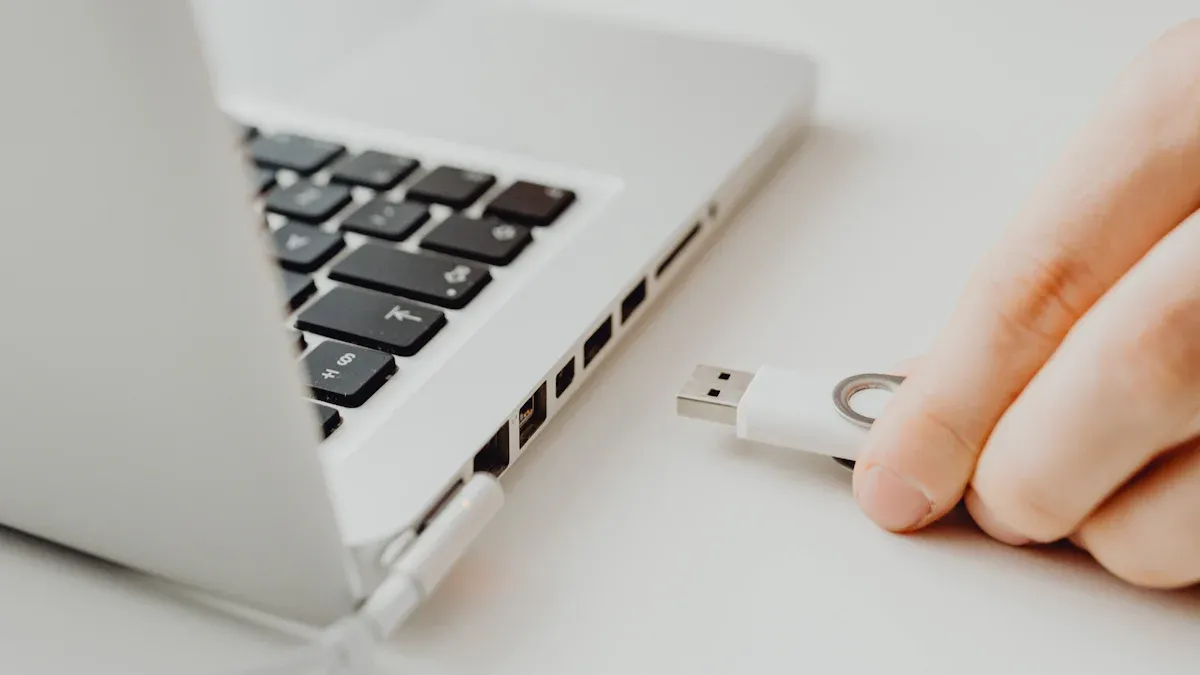
You probably use a USB drive all the time. But what is a USB flash drive, really? Think of it as a small, powerful tool for portable data storage. It lets you carry documents, photos, and videos in your pocket. Understanding its parts helps you see why care is so important.
Understanding the Basics
A USB drive is more than just a plastic case. Inside, several key parts work together to keep your data safe.
Outer Cover & Connector: This is the shell you see and the metal plug you use to connect the USB drive to a computer.
NAND Flash Memory Chip: This chip is the heart of the device. It stores all your files.
Mass Storage Controller Chip: This is the brain. It translates computer commands, finds your data, and corrects errors. It also helps the drive last longer by spreading out data storage tasks.
Crystal Oscillator: This tiny component acts like a clock. It keeps all the other parts working in perfect time with each other.
Knowing what is a USB flash drive helps you appreciate its complexity. Each part plays a vital role in its function.
Why Proper Maintenance Matters
Your USB drive will not last forever. Most usb flash drives can handle between 10,000 and 100,000 write-and-erase cycles. Manufacturers often estimate a lifespan of about 10 years with average use. This limited lifespan makes proper storage device maintenance essential.
Every time you save or delete a file, you use one of the drive's precious life cycles. Improper care can shorten this lifespan dramatically.
Simple mistakes cause most data loss. Removing a USB drive without safely ejecting it can corrupt your files. Physical damage from drops or extreme heat can also destroy the internal circuits. This is why learning about what is a USB flash drive and its maintenance needs is the first step toward protecting your information. Good habits prevent these common disasters.
Daily Use Best Practices
Your daily habits have the biggest impact on your USB drive's health. Simple precautions can make the difference between a reliable tool and a source of frustration. These tips will help you build smart routines for preventing data corruption and extending the life of your device.
Safely Eject Your USB Drive
You might be tempted to just pull your USB drive out when you are finished. This is one of the worst things you can do. Your computer often uses a process called "write caching." It temporarily holds data in its fast memory (RAM) before writing it to your slower USB drive. Yanking the drive out can interrupt this process.
This interruption can cause several problems:
Incomplete Files: Your computer might not have finished a file transfer. This leaves you with a partial file that is unusable.
File System Damage: The operating system might be updating the drive's "table of contents." An interruption can damage this structure, making it impossible for the computer to find your files. This can lead to widespread file corruption.
Journal Errors: Modern systems use a journal to track changes. A sudden removal can mess up this log, causing more errors instead of fixing them.
Following the proper steps to safely eject your drive ensures all operations are complete. This simple act is your best defense against data loss.
How to Safely Eject Your Drive
On Windows:
Click the small upward arrow (
^) in the bottom-right corner of your taskbar.Find and click the USB icon (it looks like a small plug).
Select "Eject [Your Drive Name]" from the menu.
Wait for the "Safe to Remove Hardware" notification before unplugging the drive.
On macOS:
Open a Finder window.
Look for your USB drive in the sidebar under "Locations."
Click the eject symbol (⏏) next to the drive's name.
You can also drag the drive's icon from your desktop to the Trash, which will turn into an eject symbol.
For advanced users on macOS, you can also use a Terminal command to eject the drive. After finding your disk identifier (e.g.,
/dev/diskX), you can use the commanddiskutil eject /dev/diskXto ensure a safe removal.
Avoid Editing Files on the Drive
You should treat your USB drive as a tool for transportation, not a workspace. Opening a document or video directly from the drive and editing it there causes constant read and write activity. This wears down the memory cells faster. A better practice is to copy the file to your computer's desktop first. Make your edits on the computer, save the final version, and then copy it back to the USB drive. This simple workflow helps avoid overuse and preserves the drive's limited write cycles.
Scan for Malware Before Use
A USB drive can be a carrier for computer viruses. This is especially true if you use it on public or shared computers, like those at a library, hotel, or local print shop. Recent malware campaigns, such as SOGU and SNOWYDRIVE, have been known to spread through infected USB drives used in these public places.
Before you open any files, take a moment to scan the drive with your antivirus software. Most antivirus programs let you right-click the drive icon and choose a "Scan" option. Some software even offers specific features for this purpose.
Panda Free Antivirus includes a "USB Protection" feature.
Comodo Antivirus offers a "One-Click Virus Scanning" option for quick checks.
This quick scan is a critical step to protect your data and your computer from infection.
Delete Sensitive Data After Transfer
You might think deleting a file removes it forever. On a USB drive, this is not true. When you delete a file, the drive just marks that space as available. The actual data remains until new data overwrites it. This is due to a process called "wear leveling," which spreads writes across the drive to extend its life. Specialized tools can often recover these "deleted" files.
This creates a security risk if you store sensitive information. The best way to protect your data is to use encryption. Encrypting your files or the entire drive makes the information unreadable to anyone without the password. Even if someone recovers a deleted file, it will just be a scramble of useless code. Proper care for your drive includes managing the data on it securely. A reliable connection and good habits are key.
Physical Care and Storage
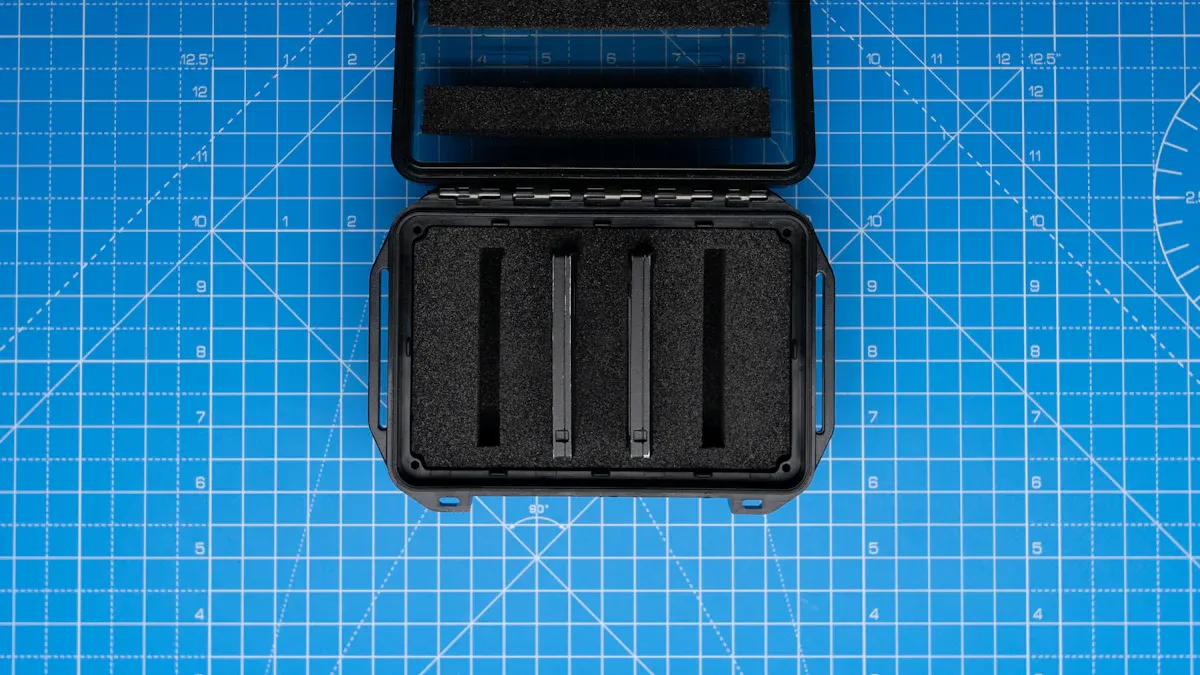
How you handle and store your USB drive is just as important as how you use it. Physical damage is a common cause of drive failure. These practical tips will help you protect your device from the bumps, dirt, and environmental hazards of everyday life. Proper usb drive care ensures your data stays safe for years.
Always Use the Protective Cap
That little cap that comes with your USB drive serves a vital purpose. It protects the metal connector from dust, lint, and moisture. A dirty or damaged connector can prevent your computer from reading the drive. Make it a habit to put the cap back on immediately after you unplug the device. If you have a capless or retractable USB drive, make sure the connector is fully retracted when not in use.
Keep Your USB Flash Drives Clean
Over time, the metal contacts on your USB drive can get dirty. This can cause connection problems. You need to know how to clean the connector safely. Never use water, as it can damage the internal electronics. Here are a few safe methods to keep your usb drive clean.
Important: Always hold the USB drive with the connector facing down during cleaning. This prevents any liquid from seeping inside the device.
Cleaning Materials You Might Need:
Isopropyl alcohol (rubbing alcohol)
Cotton swabs or a wooden coffee stirrer
A small piece of a paper coffee filter
Pliers (to flatten a cotton swab)
Cleaning Method:
Slightly dampen a cotton swab or a coffee filter wrapped around a stirrer with isopropyl alcohol. It should be damp, not dripping wet.
Gently rub the metal contacts inside the connector.
Continue until the contacts look shiny and clean.
Use a dry swab or a new piece of filter paper to dry the area.
Let the USB drive air-dry for at least 10 minutes before using it. This ensures all the alcohol has evaporated.
This simple cleaning routine can fix many connection issues and is a key part of good care.
Choose the Right Physical Drive
Not all drives are created equal. The material of the casing makes a big difference in durability. When you buy a new USB drive, consider how you will use it.
Durability Characteristics | |
|---|---|
Metal | Resists shock and drops; protects against water and extreme temperatures. |
Rubberized | Protects against shock, water, and extreme temperatures. |
Plastic (cheap) | Prone to breaking, cracking, and overheating under stress. |
If you need a tough device, look for models with metal or rubberized casings. Some are even designed to be waterproof and crushproof. For example, users often recommend the Kingston DataTraveler DTSE9 for its solid metal enclosure that holds up well. For extreme durability, the OWC Envoy Pro Elektron is another favorite. One user noted, "They claim IP67, which means it’s dust tight and protects against liquid immersion of up to 1m (3ft 3in) for at least 30 minutes." Choosing a durable USB drive from the start is a smart investment.
Use a Protective Pouch or Case
A dedicated case offers another layer of protection. Tossing a bare USB drive into a bag or pocket exposes it to dust, debris, and potential impact. A good case can prevent this. Look for pouches made from durable and weather-resistant materials.
Axoflux and X-Pac offer excellent ruggedness.
Materials with a polyurethane coating provide weather resistance.
Cases with foam padding give your USB drive extra cushioning against drops.
Using a case is a simple way to extend the life of your USB drive.
Avoid Extreme Temperatures and Shocks
Your USB drive has a preferred temperature range. For best performance, you should use it in environments between 0°C and 45°C (32°F and 113°F). Leaving your USB drive in a hot car or out in the freezing cold can damage its internal components and lead to data corruption.
Humidity is another enemy. Moving a cold USB drive into a warm, humid room can cause condensation to form inside the device. This moisture can short-circuit the electronics, just like it can in other gadgets.
A Real-World Example: A user once found their phone malfunctioning after leaving it in a steamy bathroom. Moisture had condensed inside and corroded a connector. The same can happen to your USB drive.
To prevent this, always let your device warm up to room temperature before plugging it in if you are bringing it in from the cold. This simple act of care can prevent irreversible damage.
Don't Leave It Plugged In
You should not leave your USB drive plugged into a computer permanently. Constant connection exposes the drive to potential power surges, which can fry its circuitry. It also increases the risk of accidental damage if the computer or drive is bumped. When you finish your work, safely eject the device and store the usb drive properly. This protects it from electrical risks and physical harm.
Long-Term Health and Data Integrity
Good daily habits are important. Long-term care is also crucial to protect your data. These tips for usb flash drive management will help you maintain your drive's health for years. A little planning can prevent major data loss.
Create a Regular Backup Plan
Your USB drive is for moving files, not for permanent storage. You should always have a backup of your important data. A great regular backup strategy is the 3-2-1 rule. This simple method provides strong protection.
Keep three copies of your data.
Store your copies on two different types of media (e.g., a USB drive and an external hard drive).
Keep one backup copy off-site in a separate location.
This approach for personal data backup ensures you can recover files even if your USB drive is lost, stolen, or damaged. You should backup your data regularly.
Run Periodic Error Checks
Over time, your USB drive can develop file system errors. Running a periodic check helps find and fix these issues before they cause data loss. Both Windows and macOS have built-in tools for this.
On Windows (CHKDSK):
Open File Explorer and right-click your USB drive.
Select
Properties, then go to theToolstab.Under "Error checking," click
Check.
On macOS (Disk Utility):
Open Disk Utility from your Applications folder.
Select your USB drive from the list on the left.
Click the
First Aidbutton at the top.
Consider Annual Formatting
Formatting your USB drive once a year can help maintain its performance. A format erases everything and sets up a clean file system. When you format the drive, you can choose the best file system for your needs.
File System | Best For |
|---|---|
exFAT | Moving large files between Windows and macOS. |
FAT32 | High compatibility with older devices, but has a 4GB file size limit. |
NTFS | Using the drive mainly with Windows computers. |
Use Encryption for Sensitive Data
If you carry sensitive information on your USB drive, you must protect your data. Encryption scrambles your files, making them unreadable without a password.
Note: Software encryption uses your computer's resources, which can slow it down. Hardware-encrypted drives have a dedicated chip and are faster but often cost more.
Windows Pro users can use BitLocker, and macOS users have FileVault. For a free tool that works on both systems, you can use VeraCrypt.
Know When to Retire Your Drive
A USB drive will not last forever. Most can handle 10,000 to 100,000 write cycles. Heavy use can wear out usb flash drives in as little as 18 months. Watch for these warning signs:
The computer no longer recognizes the USB drive.
Files become corrupted or unreadable.
You see error messages like "Data error (cyclic redundancy check)."
Transfer speeds become extremely slow.
If you see these problems, it is time to backup your files and replace the USB drive. This proactive care will extend the life of your data.
You now have a complete checklist for your usb drive. You learned about the device, daily habits, physical care, and long-term management. Consistent care is the most important factor. Following these steps makes your usb drive last longer and keeps your files safe. You have the power to protect your data and your usb drive. Take control and keep your important information secure! ✅
FAQ
Can I recover files from a broken USB drive?
You might be able to recover your files. If the drive is physically damaged, you will need a professional data recovery service. For software issues like corruption, you can try using data recovery software. Always back up your data to avoid this situation.
How long should my USB drive last?
A USB drive's lifespan depends on its usage. Most drives can handle 10,000 to 100,000 write cycles. With average use, you can expect it to last several years. Heavy daily use will wear it out much faster. Replace it when you see frequent errors.
Does the file system really matter?
Yes, the file system is very important. It determines how your drive stores data and which devices can read it.
exFAT: Best for large files and use on both Windows and Mac.
FAT32: Works with most devices but has a 4GB file size limit.
What is the difference between USB 2.0 and USB 3.0?
The main difference is speed. USB 3.0 is much faster than USB 2.0, making it better for transferring large files. You can identify USB 3.0 ports and connectors because they are often colored blue. Understanding this helps you know what is usb flash technology can do.