The Teamwork Inside Your PC How Hardware Cooperates
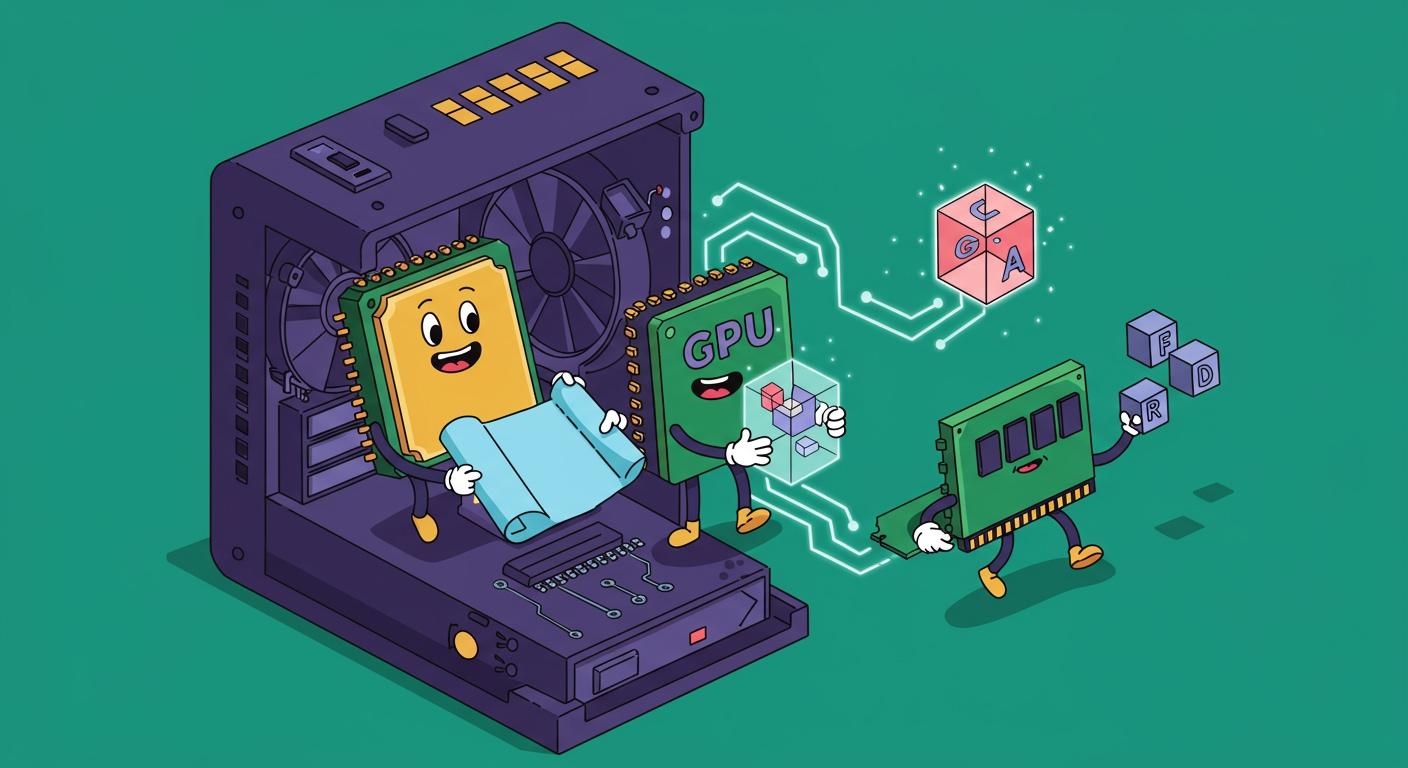
You may wonder, "What is the computer hardware inside my PC, and how does it all work together?" Your computer's components operate like a well-organized team. This guide will show you the logical process behind their teamwork. Think of it this way:
The cpu is the brain giving orders. The ram is the active workspace. The motherboard is the nervous system connecting everything.
Understanding this cooperation is simpler than you might think. Let's explore how these parts communicate to bring your PC to life.
Key Takeaways
- Your computer parts work together like a team. The motherboard connects everything. The CPU is the brain. RAM is the short-term memory.
- The power supply gives electricity to all parts. The GPU creates all the pictures you see. Storage saves your files for a long time.
- Software tells the hardware what to do. The operating system manages all the parts. It helps programs talk to your computer's hardware.
- When you turn on your PC, it checks all parts first. Then, it loads the operating system. When you play a game, the CPU and GPU work together to make the game run smoothly.
WHAT IS THE COMPUTER HARDWARE
So, what is the computer hardware that makes your PC run? You can think of hardware in two main groups. Understanding what is the computer hardware starts with knowing these categories.
- Internal Hardware Components: These are the essential parts inside your PC's case. They process instructions and store your data.
- External Hardware (Peripherals): These are devices you connect to your computer. Input devices like your mouse and keyboard give instructions, while output devices like your monitor and speakers show you the results.
This guide focuses on the internal team. Knowing what is the computer hardware inside the box is key to understanding its power. Let's look at the foundational components.
THE MOTHERBOARD: THE CENTRAL HUB
The motherboard is the main circuit board. It connects all of your PC's components, allowing them to communicate. Think of it as the body's central nervous system. A special part of the motherboard called the chipset manages the flow of data between the processor, memory, and other devices. This determines how well everything works together.
A motherboard comes in different sizes, which affects how many parts you can add.
| Feature | ATX (Standard) | Micro-ATX (Medium) | Mini-ITX (Small) |
|---|---|---|---|
| Dimensions | 305 x 244 mm | 244 x 244 mm | 170 x 170 mm |
| RAM Slots | Four | Four | Two |
| Expansion Slots | Up to 7 | Up to 4 | One |
THE POWER SUPPLY: THE HEARTBEAT
The Power Supply Unit (PSU) is your PC's heart. It takes electricity from your wall outlet and converts it into the correct voltages for all the internal components. Without it, nothing would turn on. The question "what is the computer hardware" is incomplete without mentioning the part that powers it all.
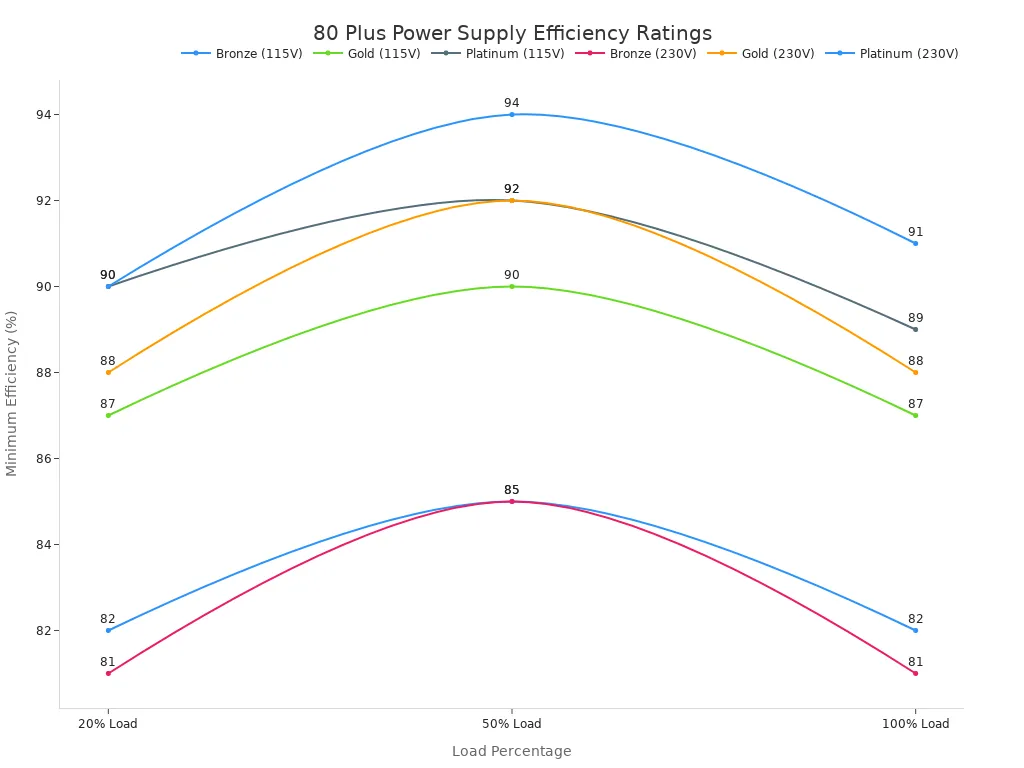
PSUs have efficiency ratings, like "80 Plus Bronze" or "Gold." A higher rating means the PSU wastes less energy as heat. This chart shows that higher-rated power supplies are more efficient at different workloads.
Tip: You can use an online PSU calculator to find the right wattage for your system. You just need to list your main components, like the CPU and GPU, to get a recommendation. This helps you understand what is the computer hardware you need to power your specific build.
THE BASIC COMPONENTS OF A COMPUTER
Now that you understand the foundation, let's meet the core team. The basic components of a computer work together to handle every task you perform. These parts are the CPU, RAM, GPU, and storage. Understanding how they function is key to seeing the full picture of your PC's teamwork.
THE CPU: THE BRAIN
The Central Processing Unit, or CPU, is your computer's brain. It performs the calculations and follows the instructions that make your PC work. The CPU follows a simple cycle: it fetches an instruction, decodes what it means, and executes the command. It does this billions of times per second. The two main companies making CPUs are Intel and AMD.
| Company | Market Share (Steam Hardware Survey - September 2025) |
|---|---|
| Intel | 58.61% |
| AMD | 41.31% |
A CPU has cores and threads. Think of cores as individual workers and threads as the number of tasks each worker can handle at once.
- Single-core performance is great for simple tasks or older games.
- Multi-core performance is better for heavy tasks like video editing or modern gaming.
The right Central Processing Unit depends on your needs. A CPU with more cores helps you multitask, but a CPU with a higher clock speed (its operating speed) can be faster for single tasks.
RAM: THE SHORT-TERM MEMORY
Random Access Memory, or RAM, is your computer's temporary workspace. When you open a program, the CPU pulls the necessary data from your storage and places it into RAM for quick access. This memory is volatile, meaning it clears when you turn off the power. The motherboard uses electronic pathways to connect the CPU to the RAM, allowing them to communicate instantly.
More Random Access Memory lets you run more programs at once without slowdowns.
Having enough memory is crucial for a responsive system.
THE GPU: THE VISUAL ARTIST
The Graphics Processing Unit, or GPU, is a specialized processor that creates the images, videos, and animations you see on your screen. It's the visual artist of the team. You will find two main types of graphics card components.
| Feature | Integrated GPUs | Dedicated GPUs |
|---|---|---|
| Location | Built into the CPU | A separate graphics card |
| Memory | Shares system RAM | Has its own memory (VRAM) |
| Power | Good for basic tasks | Essential for gaming and creative work |
A powerful graphics card is essential for playing modern games at high resolutions. The graphics card uses its own memory, called VRAM, to hold texture and image data. Playing a game at 4K resolution requires much more VRAM than at 1080p because there are more pixels to render for each frame.
STORAGE: THE LONG-TERM MEMORY
Storage is your computer's long-term memory. It holds your operating system, applications, and personal files even when the power is off. The two main types of storage devices are Hard Disk Drives (HDDs) and Solid-State Drives (SSDs). HDDs use spinning disks, while solid-state drives use flash memory, making them much faster and more durable because they have no moving parts.
Newer solid-state drives, called NVMe SSDs, are even faster. They connect directly to the motherboard for incredible read and write speeds. This chart shows how much faster an NVMe drive is compared to older storage technologies.
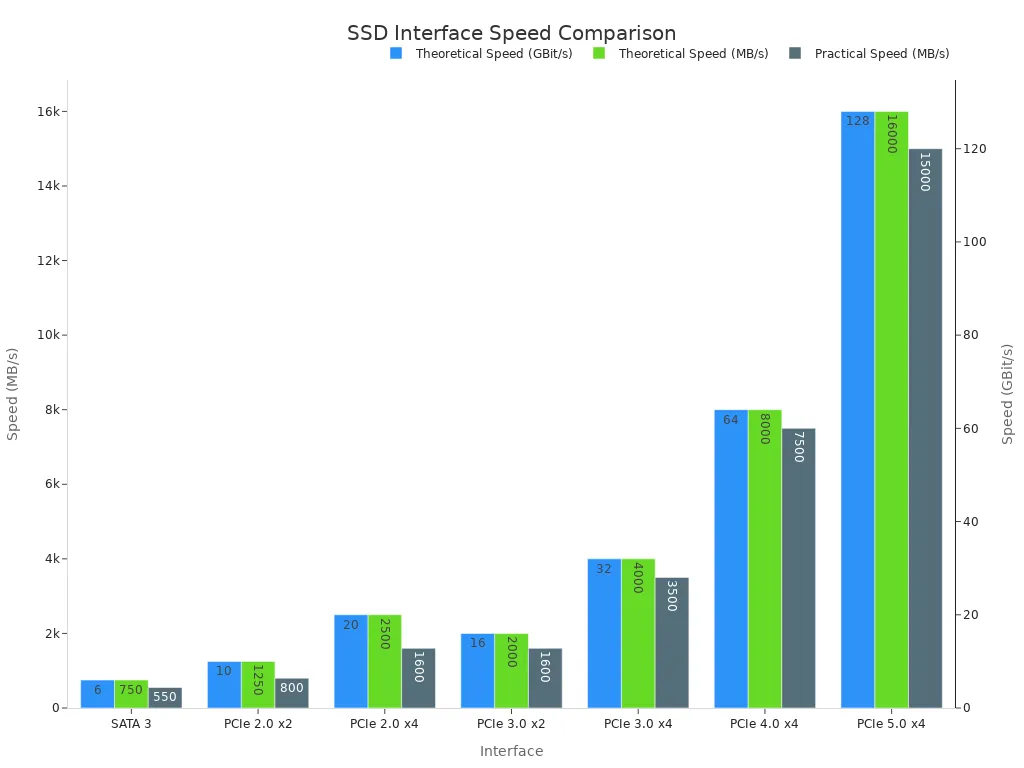
Faster storage means your PC boots up quicker, and your games and applications load in a flash. These basic components of a computer—the CPU, RAM, GPU, and storage devices—form the essential team that brings your digital world to life.
HOW SOFTWARE USES COMPUTER HARDWARE COMPONENTS
Your computer hardware components are powerful, but they need instructions to do anything. Software provides these instructions. Think of your hardware as a talented orchestra and software as the sheet music and the conductor. Without the music, the orchestra sits silent. Understanding how they function together is the next step.
THE ROLE OF THE OPERATING SYSTEM
The operating system (OS) is the master software that manages all your hardware. It acts as a bridge between your applications and your PC's physical components. The operating system uses a special layer, called a Hardware Abstraction Layer (HAL), to talk to your hardware. This layer hides the complex details of your components, allowing the OS to work with many different types of hardware.
The OS also acts as a traffic cop for your processor. It uses a scheduler to decide which program gets to use the CPU at any given moment. This ensures all your running applications get a fair share of processing time, keeping your system responsive. The OS manages your system's memory, deciding what gets stored and where.
FROM CLICK TO ACTION
So, what happens when you click your mouse? That simple action starts a chain reaction between software and hardware.
Your click sends an electronic signal through the USB port. This signal creates an interrupt, which is a high-priority message for the cpu. The processor stops its current task, reads the interrupt, and understands that the mouse was clicked.
At this point, the operating system takes over. Your application, running in a safe "user mode," cannot directly control hardware. It must ask the OS for help using a special request called a system call.
- The system call allows your program to safely ask the kernel (the OS core) to perform an action.
- The kernel receives the request, determines what to do, and executes the command.
- For example, it might pull data from storage into random access memory. The necessary instructions are loaded into this temporary memory, or ram, for the CPU to execute quickly.
This entire process, from your click to the on-screen result, happens in a fraction of a second. It is a perfect example of software directing hardware to perform a task.
HOW HARDWARE COOPERATES: STEP-BY-STEP
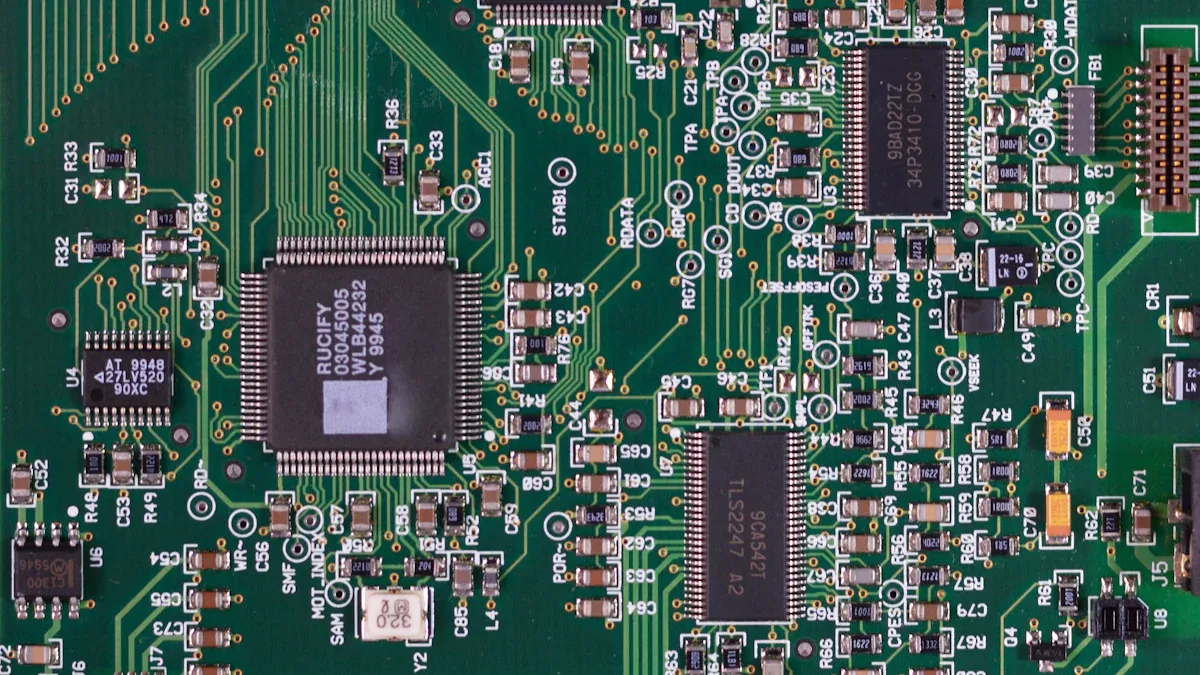
You now understand the individual players and how software directs them. Let's see the team in action with two real-world examples. These step-by-step scenarios show how your hardware components cooperate to perform complex tasks seamlessly.
EXAMPLE: BOOTING YOUR PC
When you press the power button, you kick off a precise sequence of events. This process, called booting, brings your computer from a powered-off state to a ready-to-use desktop.
First, the power supply sends electricity to the motherboard and all connected parts. The motherboard's firmware, a special software built into it, immediately starts a process called the Power-On Self-Test (POST). The POST is a quick diagnostic check to ensure your core hardware is working.
What does the POST check? ⚙️ The firmware quickly verifies several key items:
- It checks the CPU registers.
- It confirms the integrity of the BIOS/UEFI code itself.
- It verifies basic components like timers and interrupt controllers.
- It initializes and verifies your system's main memory.
Your PC's firmware can be either the older BIOS or the modern UEFI. UEFI offers more features and better security, which is why most modern computers use it.
| Feature | Legacy BIOS | Modern UEFI |
|---|---|---|
| Security | Fewer security features | More features, like Secure Boot |
| Disk Format | Uses Master Boot Record (MBR) | Uses GUID Partition Table (GPT) |
| Boot Speed | Slower startup times | Faster startup times |
Once the POST is complete, the firmware looks for a bootloader on your primary storage device. The bootloader is a small program with a critical job. It locates the operating system kernel on your storage drive and loads it entirely into available RAM. The kernel must fit into this temporary memory, as the system cannot boot otherwise. After loading the kernel, the bootloader hands over control. The operating system then starts its own processes, loads drivers for your hardware, and displays your login screen or desktop.
EXAMPLE: LAUNCHING A GAME
Launching a video game is a perfect showcase of high-speed teamwork, especially between the CPU and GPU. The process starts with your simple double-click on a game icon.
Your click sends a command to the operating system. The central processing unit receives this instruction and begins its work. It accesses the game's files from your long-term storage, whether it's a hard drive or a faster solid-state drive. The CPU pulls the essential data—like the game engine, 3D models, and textures—and loads it into your computer's random access memory. Placing this data in RAM allows for much faster access than reading it directly from storage devices.
With the game's core files in memory, the real collaboration begins. The CPU and the graphics card divide the workload based on their strengths.
- The CPU excels at sequential tasks. It handles game logic, artificial intelligence (AI), and physics calculations.
- The graphics card is a master of parallel processing. It takes on the heavy lifting of rendering, such as shading and rasterization, to create images rapidly.
To draw an object on your screen, the cpu sends a command called a "draw call" to the GPU. This process has two main steps:
- Update Render State: The CPU prepares all the necessary data, such as shader programs and textures, and sends it to the GPU.
- Submit Draw Call: The CPU then issues the final command, telling the graphics card exactly what to draw.
The GPU takes these instructions and renders the frame, which you see on your monitor. This entire cycle repeats dozens or even hundreds of times per second, creating the smooth motion you experience in a game.
Your PC's hardware operates like a symphony. Each of the components has a specialized role. The motherboard connects everything. The central processing unit, or cpu, directs tasks. Your system memory holds active data, while storage provides the files. The graphics card creates the visuals you see. These parts are useless alone but powerful together.
You now understand the fundamental dialogue that brings your computer to life. The future of this teamwork is also exciting.
- AI-First SoCs: Future designs will include dedicated AI accelerators for smarter, more efficient performance.
- Open-Source Hardware: The RISC-V architecture is making it easier for developers to create custom, innovative chips.
- Sustainability: The industry is moving toward recyclable materials and energy-efficient designs to reduce environmental impact.
This knowledge empowers you to see how your machine works from the inside out, from its current storage devices to its future graphics card capabilities.
FAQ
What is the most important part of a PC?
No single part is most important. Your PC relies on teamwork. The CPU acts as the brain, but it cannot work without RAM (its workspace) or the motherboard (its nervous system). Every component has a critical role to play for a balanced and functional system.
Why is my computer slow with a fast CPU?
A fast CPU can be held back by other components. This issue, called a bottleneck, often happens for a few reasons:
- You may not have enough RAM for your tasks.
- Your storage drive (like an old HDD) might be too slow.
- Your GPU could be underpowered for gaming.
Can I upgrade just one component?
Yes, you can often upgrade a single part for a performance boost. Adding more RAM or a faster SSD are common upgrades. You must always check that the new part is compatible with your motherboard and power supply before you buy it. ✅