Is DVI Still Relevant? A 2025 Visual Connector Guide
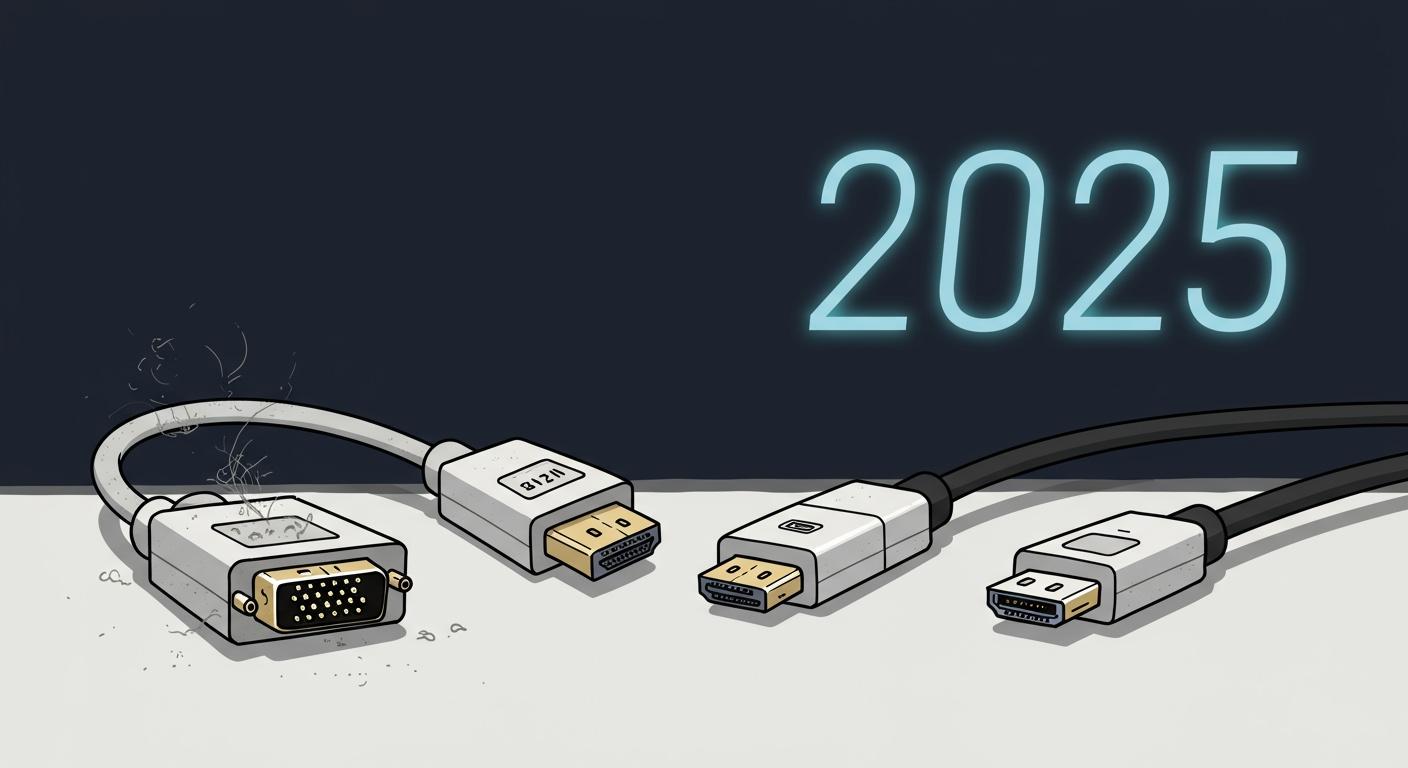
For new hardware, the Digital Visual Interface (DVI) is mostly a thing of the past. However, that old DVI port on your computer is far from useless. A solid DVI connection provides pure digital video signals for your display. You can still use DVI to your advantage.
DVI still shines in a few key scenarios: ✨
- Legacy Monitors: Powering an older but still excellent monitor.
- Budget Gaming: Achieving high refresh rates without a new graphics card.
- Extra Ports: Using it when your main HDMI or DisplayPort slots are full.
This guide helps you identify your specific DVI connector. You can master your DVI connections and ensure a perfect signal every time.
Key Takeaways
- DVI is still useful for older monitors, budget gaming, and as a secondary display.
- Dual-link DVI supports high refresh rates for gaming, like 144Hz at 1080p.
- DVI-D sends only digital signals, while DVI-I sends both digital and analog signals.
- DVI does not carry audio; you need a separate cable for sound.
- Use the right DVI adapter to connect old and new devices.
WHEN TO USE DVI IN 2025
While new devices rarely feature DVI, you might be surprised by how useful that old port can be. A solid DVI connection provides a clean digital video signal. You can use DVI to your advantage in several specific situations. Let's explore where this classic connector still holds its own.
FOR BUDGET HIGH-REFRESH GAMING
You might have an older gaming monitor that was once top-of-the-line. Many of these displays, like the popular BenQ XL2411T, used a dual-link DVI connection to achieve high refresh rates. Your graphics card's HDMI or DisplayPort outputs might not support the same refresh rate on that specific monitor. In this case, a dual-link DVI cable is your best bet.
A dual-link DVI connection can handle more data than single-link DVI. This allows it to support higher resolutions and refresh rates.
What can Dual-Link DVI handle?
- 1920 × 1080 @ 144 Hz (FHD)
- 1920 × 1200 @ 120 Hz (WUXGA)
- 2560 × 1600 @ 60 Hz (WQXGA)
If you have a compatible monitor and graphics card, using the DVI-D port can give you a smooth 144Hz gaming experience at 1080p without spending any money on new hardware. It's a perfect solution for a budget-friendly setup.
FOR LEGACY & PROFESSIONAL HARDWARE
You will find DVI ports on more than just old computer monitors. Many professional and industrial fields rely on equipment with stable DVI connections. The digital video signal is reliable and free from interference, which is critical for precision work.
You can find a DVI connector on specialized equipment in many sectors:
- Healthcare: Medical imaging devices for radiology, ultrasound, and surgery often use DVI for clear, detailed displays.
- Industrial Control: Factory controllers and monitoring stations use DVI for its durability and signal integrity.
- Government & Military: Secure KVM switches (devices that let you control multiple computers with one keyboard, video, and mouse) frequently use the DVI-I standard for its versatility.
These systems are built to last for decades. Your knowledge of DVI helps you connect and maintain this important hardware. The DVI standard ensures that these devices continue to function as intended.
AS A SECONDARY DISPLAY OUTPUT
Your primary monitor likely uses HDMI or DisplayPort for features like high resolution, HDR, and audio. But what if you want to add a second screen for productivity? Your graphics card’s extra DVI port is perfect for this job. You can use it to power a secondary monitor for displaying documents, chat apps, or code.
Using DVI for a secondary display has some limitations.
- No Audio: The DVI standard does not carry audio. You will need a separate cable for sound.
- No Advanced Features: DVI does not support modern features like HDR (High Dynamic Range) or variable refresh rates.
- Limited Bandwidth: The DVI signal cannot handle ultra-high resolutions like 4K at high refresh rates.
These limitations are often not a problem for a secondary screen. The DVI port provides a crisp, reliable picture for basic tasks. It frees up your more advanced ports for your main gaming or media display, giving you more screen real estate without needing expensive adapters or a new graphics card. The digital signals provide a perfect image for static content.
IDENTIFYING YOUR DVI CONNECTOR
You might think all DVI ports look the same, but they have critical differences. The Digital Visual Interface (DVI) standard includes several connector types. Choosing the wrong DVI cable can lead to a blank screen or poor performance. You can learn to spot the differences to ensure a perfect DVI connection every time. This visual guide will help you identify your specific DVI connector.
DVI-D (DIGITAL-ONLY)
The DVI-D connector sends a pure digital video signal. This is the most common type of DVI you will find on modern graphics cards and monitors. It provides a crisp, clear picture for digital displays. The "D" simply stands for Digital.
However, DVI-D comes in two forms: Single-Link and Dual-Link. The main difference is the number of pins, which affects how much data they can handle for video transmission.
- Single-Link DVI: This version has a noticeable gap in the middle of its pins. It has enough bandwidth for resolutions up to 1920x1200 at 60 Hz.
- Dual-Link DVI: This version uses all 24 pins with no gap. The extra pins double the bandwidth. This allows a dual-link DVI connection to support higher resolutions and refresh rates, which is essential for high-refresh-rate gaming.
You can easily tell them apart by looking at the pin layout.
| DVI-D Type | Pin Configuration | Number of Pins Used |
|---|---|---|
| Single-Link | Two separated 9-pin sets | 18 of 24 |
| Dual-Link | A solid 24-pin set | All 24 |
The performance capabilities also differ significantly. If you want to run a monitor above 60 Hz, you need a dual-link DVI cable and compatible ports.
| DVI Type | Maximum Resolution | Refresh Rate (for 1920x1080) |
|---|---|---|
| DVI-D Single Link | 1920 x 1200 | 60 Hz |
| DVI-D Dual Link | 2560 x 1600 | 144 Hz |
DVI-I (INTEGRATED)
The DVI-I connector is the most versatile of the bunch. The "I" stands for Integrated because it combines digital and analog signals into a single port. This hybrid design makes it a jack-of-all-trades for DVI connections. You can identify a DVI-I port by its pin layout. It has the full set of digital pins like a dual-link DVI-D connector, plus four extra pins surrounding the flat horizontal blade.
What do the extra pins do? 💡 These four pins carry the analog signal. They are what allow a DVI-I port to send video signals to an old VGA monitor using a simple passive adapter.
- C1: Analog Red Video
- C2: Analog Green Video
- C3: Analog Blue Video
- C4: Analog Horizontal Sync
Because DVI-I supports both signal types, it offers great backward compatibility.
- It sends digital signals to a DVI-D or DVI-I monitor.
- It sends analog signals to a VGA or DVI-A monitor.
This versatility made DVI-I a popular choice on graphics cards during the transition from analog to digital video. If your DVI port has these four extra pins, you have a DVI-I connector.
DVI-A (ANALOG)
The DVI-A connector is the rarest of the three. The "A" stands for Analog. This port was created to connect digital sources to older analog displays, like CRT monitors. It only carries analog signals. You can spot a DVI-A connector by its unique pin layout. It has the four analog pins around the flat blade but is missing most of the central digital pins.
The DVI-A standard is now obsolete.
- It offers no benefit over standard VGA.
- It does not support digital video.
- Modern devices do not include a DVI-A port.
You are very unlikely to encounter a DVI-A port in 2025. Its function has been completely replaced by DVI-I for analog compatibility and by HDMI and DisplayPort for everything else. Understanding DVI-A helps complete your knowledge of the DVI family, but you will likely never need to use it.
DVI VS. MODERN CONNECTORS
You know how to identify your DVI connector. Now, let's see how it stacks up against the other ports on your devices. Understanding these differences helps you choose the right cable for the job.
DVI VS. HDMI
You can think of HDMI as the successor to DVI. A DVI-D port and an HDMI port both send a digital video signal, which makes them compatible with a simple adapter. However, HDMI is far more capable. The biggest difference is that DVI does not carry audio. You will need a separate cable for sound. While DVI supports HDCP for protected content, it is an older version (HDCP 1.4).
Here is a quick comparison of a dual-link DVI connection and a modern HDMI port.
| Feature | Dual-Link DVI | HDMI 2.0 |
|---|---|---|
| Audio Support | No | Yes, up to 32 channels |
| Bandwidth | ~7.92 Gbps | ~14.4 Gbps |
| HDR Support | No | Yes |
DVI VS. DISPLAYPORT
DisplayPort is the most powerful connector for modern computers. It offers much more bandwidth than DVI. A DisplayPort 1.4 connection provides about 25.92 Gbps of data, while even a dual-link DVI tops out around 7.92 Gbps. This extra power allows DisplayPort to support features that DVI cannot.
DisplayPort's Advanced Features 🚀
- Multi-Stream Transport (MST): Lets you run multiple monitors from a single port.
- Adaptive Sync: Enables smooth, tear-free gaming with FreeSync and G-Sync.
- High Resolutions: Supports 4K and even 8K resolutions at high refresh rates.
For any high-performance task, you should always choose DisplayPort over DVI.
DVI VS. VGA
This is a battle of digital versus analog. DVI provides a much better picture than VGA. A DVI cable sends pure digital signals from your computer to your monitor. A VGA cable sends analog signals, which can lose quality and pick up interference. This can make the image look blurry or fuzzy, especially at 1080p resolution.
For a crisp and clear picture, a DVI connection is always superior to VGA. The digital video from a single-link DVI port easily handles 1080p at 60 Hz, while VGA struggles to maintain clarity at that same resolution.
ADAPTER GUIDE: CONNECTING YOUR DVI PORT
You have identified your ports. Now you need the right adapter to make your DVI connections. Adapters can bridge the gap between old and new hardware. This guide covers the most common scenarios you will face.
DVI MONITOR TO A MODERN PC
Your new PC probably has DisplayPort and HDMI, but your trusty old monitor might only have a DVI input. You can easily connect them. The best solution is a DisplayPort to DVI adapter or a single cable that handles the conversion.
- Passive Adapters: These are simple and cheap. A passive DVI adapter works if your computer's DisplayPort supports a feature called DP++. Look for the DP++ logo next to the port. The port itself handles the signal conversion.
- Active Adapters: These adapters have a small chip inside to convert the signal. You need an active adapter if your PC does not support DP++ or if you are connecting multiple monitors.
Many converter cables, like a DisplayPort to DVI Converter Cable, will get the job done for a single monitor. These typically support resolutions up to 1920x1200. Remember, the DVI standard does not carry audio, so you will need a separate audio cable for sound.
MODERN MONITOR TO AN OLD PC
You might have an older computer with a DVI-D output that you want to connect to a new HDMI monitor. This is a simple and common task. You need a DVI-D Male to HDMI Female video adapter. This small device lets you plug a standard HDMI cable into your computer's DVI port.
Important Note on Refresh Rate 🖥️ This DVI connection works great for a crisp digital video signal. However, a single-link DVI to HDMI connection is usually limited to a 60 Hz refresh rate. This is fine for general use but not ideal for high-refresh-rate gaming. Also, you will need a separate audio solution, as the DVI port sends no sound.
DVI-I PORT TO A VGA MONITOR
You can connect a DVI-I port directly to an old VGA monitor. This works because the DVI-I connector carries both digital and analog signals. You just need a simple passive DVI to VGA adapter. This adapter does not convert anything. It simply acts as a "plug changer."
The adapter takes the analog signal pins from the DVI-I port and maps them to the correct pins on the VGA plug. This is why it only works with a DVI-I source. A DVI-D port lacks these analog pins and cannot send a signal to a VGA monitor without an expensive active converter. This simple DVI adapter is a lifesaver for using older displays.
You should not seek out a DVI port on new devices. However, the DVI standard remains very functional for specific uses. A successful DVI connection relies on you knowing the connector types. This knowledge prevents frustration when using adapters. DVI-I can send an analog signal, while DVI-D only sends digital signals for pure digital video.
Final Tip 💡 You should hold onto that old DVI cable. It can save the day when you need to connect different hardware and get a reliable digital video signal.
FAQ
Can I get 144Hz with any DVI cable?
No, you need a specific cable for high refresh rates. You must use a dual-link DVI cable to get 144Hz at 1080p. Your graphics card and monitor must also support dual-link DVI. A single-link DVI cable will limit you to 60Hz.
Does DVI carry audio?
The DVI standard only sends video signals. It does not carry audio. You will need a separate cable, like a 3.5mm audio cord, to connect your computer's sound to your monitor or speakers. This is a key difference between DVI and HDMI.
How can I quickly tell DVI-D and DVI-I apart?
You can look at the pins around the long flat blade on the connector. A DVI-I port has four extra pins there for its analog signal. A DVI-D port will have an empty space where those four pins would be.