Monitor Cable Types Made Easy
If you want the best cable for most monitors today, HDMI stands out for its balance of quality, compatibility, and ease of use. Choosing the right monitor cable types matters because it affects image sharpness and device support. You might see DisplayPort for gaming, HDMI 2.1 for high refresh rates, or USB-C for powering and connecting multiple screens. Picking the right cable helps you avoid problems and get the most from your setup.
- DisplayPort delivers ultra-high resolutions and fast refresh rates.
- HDMI 2.1 works well for 4K gaming and movies.
- USB-C keeps your workspace tidy and powers your monitor.
Key Takeaways
- HDMI is the most versatile cable for modern monitors, supporting both video and audio with resolutions up to 16K.
- DisplayPort is ideal for gaming, offering high refresh rates and the ability to connect multiple monitors with one cable.
- USB-C simplifies connections by providing video, audio, and power through a single cable, keeping your workspace organized.
- Always match your cable to your monitor's resolution and refresh rate to ensure the best performance and image quality.
- For older devices, consider using adapters or converters to connect to modern monitors, but check compatibility first.
Monitor Cable Types Overview
Choosing the right monitor cable types helps you connect your devices easily and get the best picture quality. You see many cables on the market, but not all work with every monitor. Let’s break down the most popular and legacy options so you can pick the best one for your setup.
HDMI
HDMI stands out as the most common cable for modern monitors and TVs. You use HDMI to connect gaming consoles, computers, and home entertainment systems. This cable supports both video and audio, making it a simple choice for most users. HDMI 2.1 can handle up to 16K resolution and high frame rates, which means you get sharp images and smooth motion for movies and games.
Tip: HDMI works with almost every new monitor, TV, and gaming console. You rarely need an adapter.
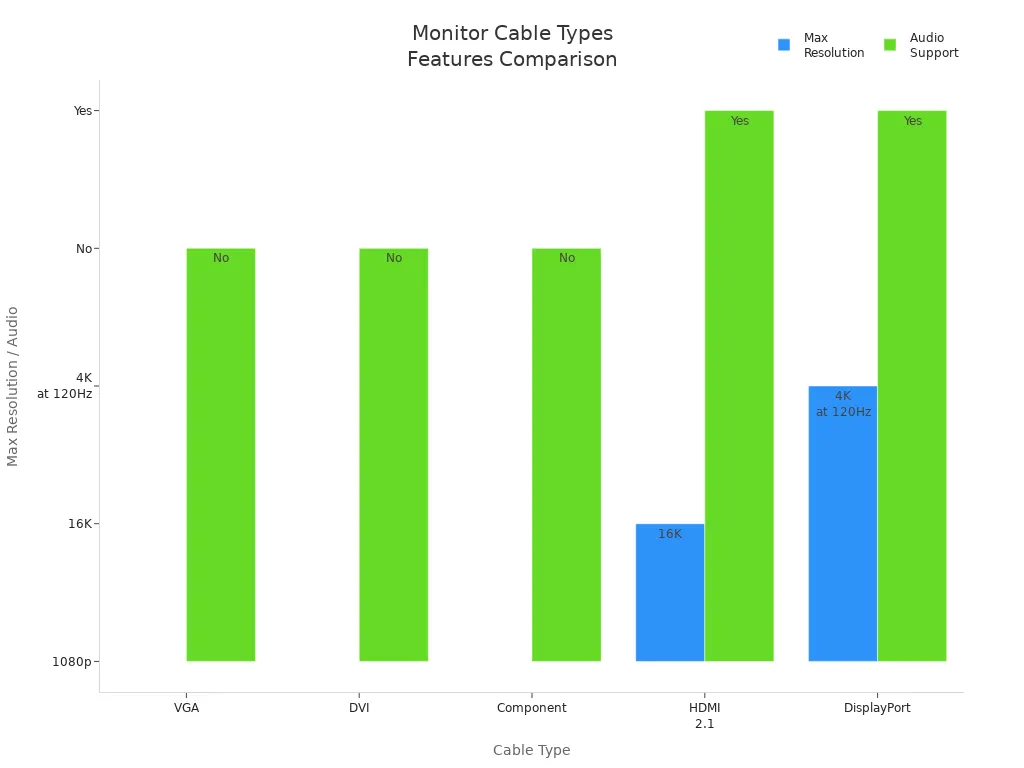
Here’s a quick comparison of HDMI and other monitor cable types:
| Cable Type | Max Resolution | Audio Support | Notes |
|---|---|---|---|
| VGA | Up to 1080p | No | Analog signal, requires conversion. |
| DVI | Up to 1080p | No | Limited to video only. |
| Component | Up to 1080p | No | Limited to video only. |
| HDMI 2.1 | Up to 16K | Yes | Supports high frame rates and HDR. |
| DisplayPort | Up to 4K at 120Hz | Yes | Offers high bandwidth for gaming. |
You find HDMI ports on:
- TVs
- Monitors
- Gaming Consoles
HDMI is a widely supported standard connection found on many devices, especially in home entertainment and gaming. This makes it a top choice among monitor cable types.
DisplayPort
DisplayPort is another popular option for high-end monitors, especially in gaming and professional setups. You use DisplayPort when you want higher refresh rates and resolutions. This cable supports daisy chaining, so you can connect multiple monitors with one cable. DisplayPort offers higher bandwidth than HDMI, which means better image quality and smoother gameplay.
| Advantage | DisplayPort | HDMI |
|---|---|---|
| Image Quality | Generally better for high-quality setups | Good, but less optimal for high-end use |
| Multi-Display Capability | Supports daisy chaining for multiple monitors | Limited to one display per output |
| Bandwidth | Higher maximum bandwidth | Lower maximum bandwidth |
| Resolution and Refresh Rate | Higher resolution and refresh rates | Good, but not as high as DisplayPort |
You see DisplayPort on many gaming monitors and graphics cards. It supports up to 16K resolution and high refresh rates, which is perfect for fast-paced games.
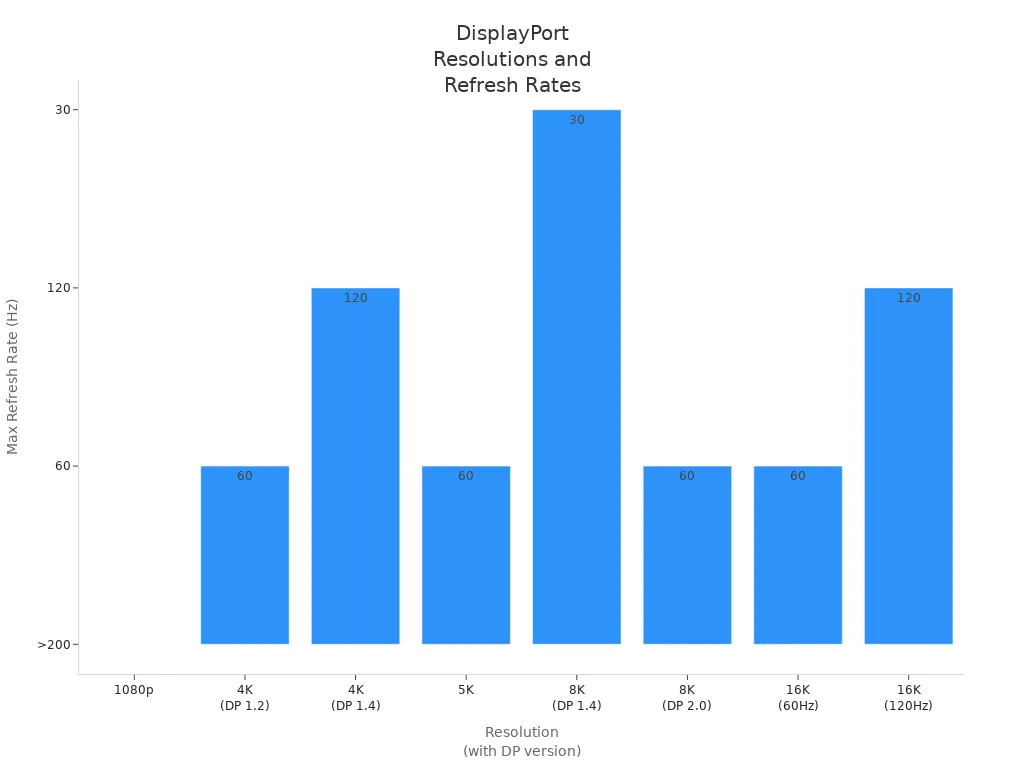
| DisplayPort Version | Maximum Resolution | Refresh Rate |
|---|---|---|
| DisplayPort 1.2 | 4K (3840x2160) | 60Hz |
| 1080p | >200Hz | |
| DisplayPort 1.4 | 4K (3840x2160) | 120Hz |
| 5K | 60Hz | |
| 8K | 30Hz | |
| DisplayPort 2.0 | 8K | 60Hz |
| 16K | 60Hz | |
| 16K | 120Hz |
DVI
DVI cables belong to older monitor cable types. You use DVI mostly with older monitors, desktop graphics cards, and some laptops. DVI only carries video, so you need a separate cable for audio. DVI-D dual-link supports high frame rates at 1080p, but for 4K resolution, you should choose HDMI or DisplayPort.
| Connection Type | Video Quality | Audio Support | Maximum Resolution |
|---|---|---|---|
| DVI | High-quality | No | Up to 2560 x 1600 |
| HDMI | High-quality | Yes | Up to 4K |
| DisplayPort | Superior | Yes | Up to 8K |
- DVI-D dual-link can transmit bitrates as high as 7.92 Gbit/sec at 2560 x 1600 resolution.
- DVI is a good choice for high frame rates on 1080p monitors.
- For 4K resolution, DisplayPort or HDMI is recommended.
DVI cables are available in formats like DVI-D and DVI-I. You find them in older setups that need video output only.
VGA
VGA is one of the oldest monitor cable types. You use VGA with older computers, projectors, and some industrial equipment. VGA only supports video and uses analog signals, which means you lose quality at higher resolutions or longer cable lengths.
| Limitation | Description |
|---|---|
| Maximum Resolution | Supports up to 1920x1080 (1080p), but quality loss occurs at higher resolutions. |
| Compatibility | Older technology, often requires adapters for modern devices. |
| Signal Degradation | Susceptible to quality loss over longer distances due to analog transmission. |
| Audio Support | Does not support audio transmission as it is solely for video. |
| Adaptability | Requires a digital-to-analog converter for digital-only devices. |
| Device Type | Description |
|---|---|
| Older Computers | Many older models still include VGA ports for monitor connections. |
| Projectors | Some projectors continue to support VGA for compatibility with older devices. |
| Industrial Equipment | Certain industrial devices and machinery still utilize VGA for display output. |
Note: VGA is a legacy option. You need adapters for most new monitors.
USB-C
USB-C is a newer cable type that supports video, audio, data, and power. You use USB-C with modern laptops, tablets, and monitors. This cable keeps your desk tidy and lets you connect and charge your monitor with one cable. USB-C with Alt Mode can replace HDMI or DisplayPort cables, offering high bandwidth for better video quality.
| Benefit | USB-C Cables | Traditional Video Cables |
|---|---|---|
| Compatibility | Widely adopted across devices (laptops, phones) | Limited to specific devices |
| Video Transmission Capabilities | Supports high resolutions and refresh rates | Varies by cable type |
| Convenience | Slim design, fewer cables needed | Bulkier, more cables required |
- USB-C with Alt Mode can replace HDMI or DisplayPort cables.
- DisplayPort over USB-C offers higher bandwidth for better video quality.
| Technology | Description | Video Output Capability |
|---|---|---|
| Thunderbolt 3 | Supports video output using DisplayPort protocol. | Up to two 4K displays at 60Hz or one 5K. |
| Thunderbolt 4 | Improved performance over Thunderbolt 3. | Up to two 4K displays at 60Hz or one 8K. |
| Thunderbolt 5 | Up to 80 Gbps bi-directional bandwidth. | Dual 6K or 8K displays. |
| USB-C DisplayPort | Allows video output directly through USB-C using DisplayPort technology. | Commonly supports one 4K display at 60Hz. |
Thunderbolt
Thunderbolt cables look like USB-C, but they offer faster data transfer and better monitor support. You use Thunderbolt to connect multiple high-resolution monitors and transfer large files quickly. Thunderbolt supports daisy-chaining, so you can link several monitors together.
| Feature | Thunderbolt | USB-C |
|---|---|---|
| Data Transfer Speed | Up to 40 Gbps | Up to 20 Gbps |
| Daisy-Chaining Monitors | Yes, supports multiple 4K monitors at 60 Hz | No, supports only one 4K monitor |
| Compatibility with Devices | More protocols supported | Fewer protocols supported |
- Thunderbolt can daisy-chain multiple 4K monitors, allowing for a seamless multi-monitor setup.
- USB-C can only support one 4K monitor, limiting its use in demanding workflows.
| Thunderbolt Version | Max Data Transfer Rate | Display Capabilities |
|---|---|---|
| Thunderbolt 3 | 40 Gb/s | 2 x 4K @ 60 Hz or 1 x 5K @ 60 Hz |
| Thunderbolt 4 | 40 Gb/s | Up to 3 x 10K @ 60 Hz or 1 x 16K @ 60 Hz |
Tip: Thunderbolt is ideal for creative professionals who need fast speeds and multiple monitors.
Component & Composite
Component and composite cables are legacy monitor cable types. You use these cables with older video game systems, VCRs, DVD players, and set-top boxes. Component cables use three connectors (red, green, blue) for HD video, while composite cables use one yellow connector for video and red/white for audio.
| Feature | Component Cables | Composite Cables |
|---|---|---|
| Connectors | Red, green, and blue | Red, white, and yellow |
| Quality | Higher resolution, better video quality | Lower resolution, older technology |
| Usage | Older DVD players, cable set-top boxes | VCRs, older game consoles, set-top boxes |
You find these cables on:
- Older video game systems
- VCRs
- DVD players
- Digital video recorders
- Cable set-top boxes
- Blu-ray players
Note: You only need component or composite cables for legacy devices. Modern monitors rarely support these connections.
Different Types of Monitor Ports
Digital vs. Analog Ports
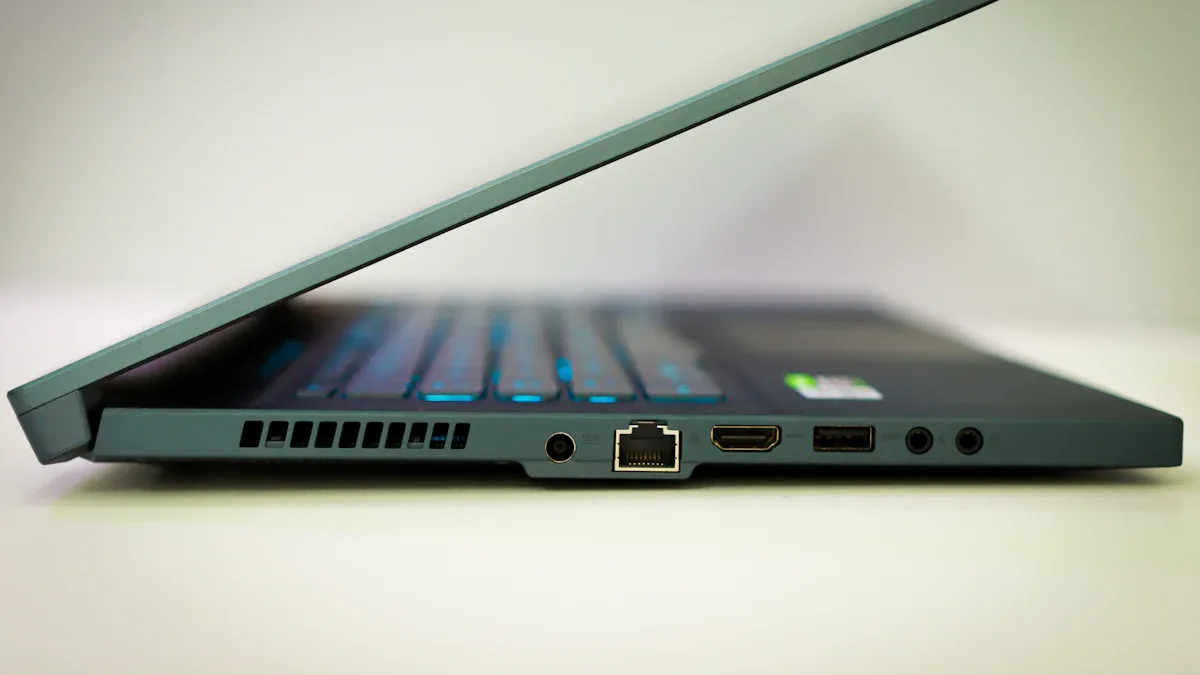
You will find two main categories when you look at the different types of monitor ports: digital and analog. Digital ports, like HDMI, DisplayPort, DVI, and USB-C, send data as 1's and 0's. Analog ports, such as VGA, use electrical signals that can lose quality over distance. Digital ports give you clearer images and better noise resistance. Analog ports often show blurry or faded visuals, especially on larger screens.
| Feature | Digital (HDMI, DVI) | Analog (VGA) |
|---|---|---|
| Signal Type | Sends data as 1's and 0's (binary) | Sends fluctuating electrical currents (RGB) |
| Noise Tolerance | High; less affected by interference | Low; susceptible to noise and interference |
| Cable Quality Impact | Minimal; cheap cables perform well | Significant; quality affects signal clarity |
| Distance Capability | Can run over long distances without issues | Quality degrades over longer distances |
| Resolution Limitation | Limited by bandwidth | Theoretically infinite resolution |
Tip: Choose digital ports for your monitor if you want sharp images and reliable performance.
| Port Type | Classification |
|---|---|
| VGA | Analog |
| HDMI | Digital |
| DisplayPort | Digital |
| DVI | Digital (and Analog) |
| USB-C | Digital |
Audio and Video Support
You need to know which ports support both audio and video. HDMI, DisplayPort, and Thunderbolt cables send audio and video together. DVI and VGA only send video, so you must use a separate cable for sound. Thunderbolt cables stand out because they also transfer data at high speeds.
| Cable Type | Audio Support | Video Support | Resolution Support |
|---|---|---|---|
| HDMI 2.1 | Yes | Yes | Up to 8K at 60Hz |
| DisplayPort | Yes | Yes | Up to 16K with DSC |
| Thunderbolt | Yes | Yes | Highest bandwidth |
| DVI | No | Yes | Up to 2560 x 1600 |
| VGA | No | Yes | Up to 1080p |
- HDMI cables transmit both audio and video over a single connection.
- DisplayPort also supports audio and video.
- DVI and VGA only support video.
Compatibility Factors
You should check compatibility before you connect your monitor. Modern devices use USB-C or Thunderbolt, while older ones rely on VGA or DVI. Make sure your monitor and device support the same resolution and refresh rate. Some monitors need special drivers for advanced features. Always match the cable to your device’s needs.
| Compatibility Factor | Description |
|---|---|
| Types of Connections | USB-C/Thunderbolt for modern devices; VGA/DVI for older devices. |
| Resolution | Ensure the device outputs a resolution that the monitor can display (e.g., 4K vs. 1080p). |
| Refresh Rate | Match the monitor's refresh rate with the GPU's capabilities to avoid performance issues. |
| Aspect Ratio | Check if the device supports the monitor's aspect ratio to avoid black bars. |
| Software and Drivers | Some monitors require specific drivers for advanced features; compatibility varies by OS. |
| Device-Specific Requirements | Different devices (laptops, consoles, smartphones) have unique port and resolution needs. |
Note: Using the wrong cable or port can lower image quality or block advanced features on your monitor.
Best Monitor Cable for Gaming
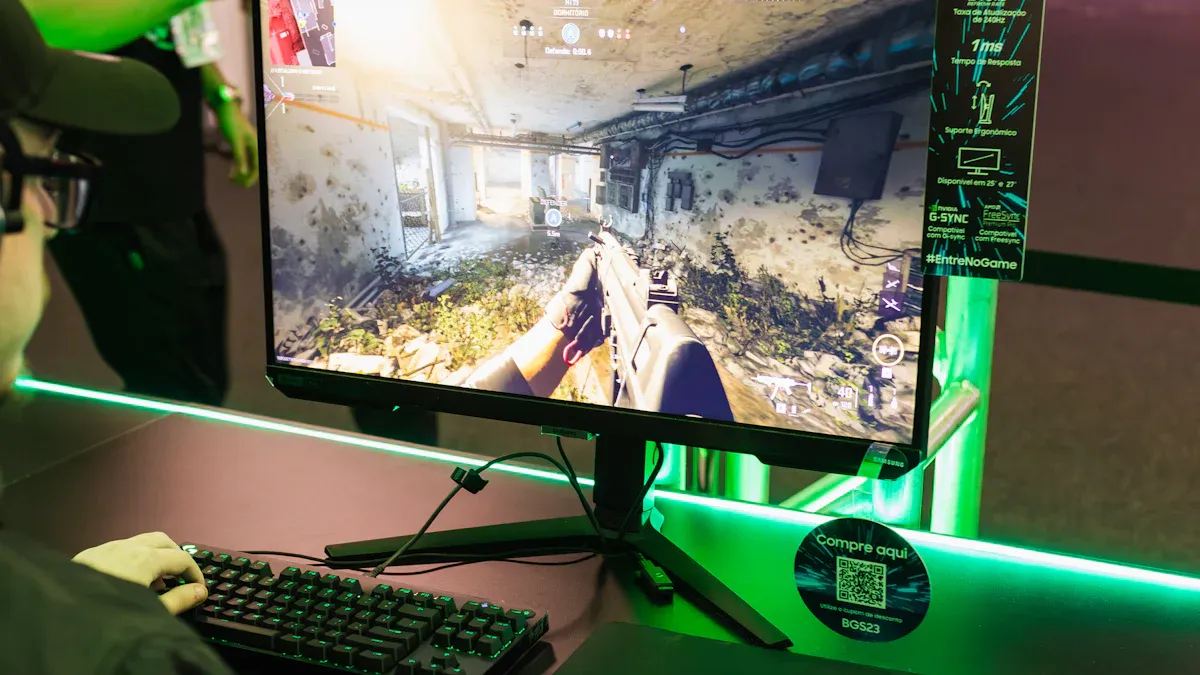
Choosing the best monitor cable for gaming can make a big difference in your experience. You want smooth gameplay, sharp images, and fast response times. Let’s look at the features that matter most for gaming setups.
High Refresh Rate Support
You need a cable that supports high refresh rates if you want fast and fluid motion in games. High refresh rates help you see quick movements and react faster. Most gaming monitors work best with refresh rates of 120Hz or higher.
Here is a table showing which cables support the highest refresh rates:
| Cable Type | Bandwidth | Resolution Support | Refresh Rate Support |
|---|---|---|---|
| Ultra High-Speed HDMI 2.1 | 48Gbps | 4K at 120Hz, 8K | High refresh rates |
| DisplayPort 1.4 | N/A | 4K at 120Hz | High refresh rates |
- HDMI 2.1 works well for next-gen consoles and supports high refresh rates.
- DisplayPort 1.4 offers enough bandwidth for high refresh rates in PC gaming.
If you use a gaming monitor, you should check if it has HDMI 2.1 or DisplayPort 1.4 ports. These cables help you get the most out of your games.
Tip: Always match your cable to your monitor’s highest supported refresh rate for the smoothest gameplay.
4K and HDR Compatibility
Modern games look best with 4K resolution and HDR. You see brighter colors, deeper blacks, and more detail. Not all cables can handle these features, so you need to choose wisely.
The Ultra High-Speed HDMI 2.1 cable is designed for new gaming consoles and high-resolution monitors. It offers 48Gbps bandwidth, which supports 4K at 120Hz and HDR. This means you get vivid colors and sharp images. Console gamers benefit most from HDMI 2.1 because it unlocks advanced graphics and future-proof features.
Here is a table comparing cable types for 4K and HDR gaming:
| Cable Type | Bandwidth | Resolution Support | Notes |
|---|---|---|---|
| HDMI 2.1 | 48Gbps | 4K at 120Hz, 8K, HDR | Best for new consoles and high-end setups. |
| DisplayPort | Up to 32.4Gbps | 4K at 120Hz | Widely supported on graphics cards. |
| DVI | Up to 9.9Gbps | 1920x1200 (digital) | Better than VGA for older PCs. |
| VGA | N/A | Up to 2048x1536 (analog) | Least recommended for modern setups. |
- Supports 4K at 120Hz and 8K resolution.
- Essential for console gamers who want high-quality visuals.
- Future-proof for advanced HDR and high-resolution displays.
If you use a PC, DisplayPort also supports 4K at 120Hz and HDR. You get great graphics and smooth motion for your favorite games.
Low Latency Options
Low latency helps you react quickly in fast-paced games. The cable you choose can affect input lag. Cheaper cables often cause more delay because they lack proper shielding. For example, a $10 "High-Speed" HDMI 2.0 cable can result in 42ms latency at 4K/60Hz. A $25 certified Ultra High Speed HDMI 2.1 cable shows only 14ms latency at 4K/120Hz.
- The quality and length of HDMI or DisplayPort cables affect signal integrity and performance.
- High-resolution and high-refresh-rate signals are more likely to degrade with poor cable quality.
If you want the lowest latency, pick a certified HDMI 2.1 or DisplayPort cable. Shorter cables also help reduce lag.
⚡ Note: High-quality cables give you faster response times and better gaming performance.
What Makes a Cable Best for Gaming?
You should look for these features when choosing the best monitor cable for gaming:
- High bandwidth for fast refresh rates and sharp images.
- Support for 4K and HDR for vivid graphics.
- Low latency for quick reactions.
- Compatibility with your monitor and gaming system.
HDMI 2.1 is the top choice for console gamers. DisplayPort works best for PC gaming monitors. Both options give you the speed and quality you need for a great gaming experience.
Choosing the Right Cable
For New Devices
When you connect a new monitor, you want to make sure you pick the right cable for your needs. Start by checking the video input connector types on your monitor and device. Most new monitors use HDMI, DisplayPort, USB-C, or Thunderbolt. Here is a simple checklist to help you decide:
- Choose the correct connector (male or female) for your device.
- Decide if you need a digital or analog signal. Most new devices use digital.
- Pick a cable that supports your monitor’s resolution and refresh rate.
- Make sure the cable can deliver enough power if you use USB-C or Thunderbolt.
- Check if you need fast data transfer for tasks like file sharing.
You often find a monitor with hdmi port or USB-C on laptops and desktops. HDMI supports up to 4K UHD, while DisplayPort can handle up to 8K. Thunderbolt 3 and USB-C also support high resolutions and data transfer.
For Older Devices
If you use an older monitor, you may see VGA, DVI, or component ports. VGA sends only analog signals, so you might need a converter for digital devices. DVI and component cables work up to 1080p. Many older cables only send video, so you need a separate cable for sound. If you have a monitor with dvi port, check if your device matches the same type.
Adapters and Converters
Sometimes your monitor and device do not match. You can use adapters or converters to connect them. Passive adapters only pass through signals and work when both devices use the same signal type. Active converters change signals, like from DisplayPort to VGA, and are needed for digital-to-analog connections. Some converters also support HDCP and higher resolutions.
Tip: Always check if you need an active converter for your setup.
Cable Length Tips
Cable length affects signal quality. Longer cables increase resistance, which can cause signal loss, especially with analog cables like VGA. High-frequency signals, such as HDMI, may show pixelation or dropouts if the cable is too long. Try to use the shortest cable possible for the best performance.
Remember, a short, high-quality cable gives you the clearest picture and sound.
You have learned how to choose the right monitor cable for your setup. Use this checklist to make your decision:
- Check your device and monitor ports.
- Match the cable to your resolution and refresh rate needs.
- Pick cables that support audio if you want sound.
- Use adapters for older devices.
Remember, the right cable helps you get the best picture and sound. Your setup works better when you choose wisely.
FAQ
What cable should you use for a 4K monitor?
You should use HDMI 2.0, HDMI 2.1, DisplayPort 1.4, or USB-C. These cables support 4K resolution. Always check your monitor and device ports before buying a cable.
Can you use adapters to connect old monitors to new computers?
You can use adapters like VGA-to-HDMI or DVI-to-USB-C. Some adapters need power or active conversion. Always check if your adapter supports your monitor’s resolution.
Does cable length affect picture quality?
Long cables can lower signal quality. Try to use cables under 6 feet for HDMI and DisplayPort. Shorter cables give you a clearer image and less chance of signal loss.
Which cables support both audio and video?
| Cable Type | Audio Support | Video Support |
|---|---|---|
| HDMI | ✅ | ✅ |
| DisplayPort | ✅ | ✅ |
| USB-C | ✅ | ✅ |
| DVI | ❌ | ✅ |
| VGA | ❌ | ✅ |
Tip: Choose HDMI or DisplayPort for both sound and picture.