D-Sub vs HDMI vs DisplayPort Which Cable Should You Use
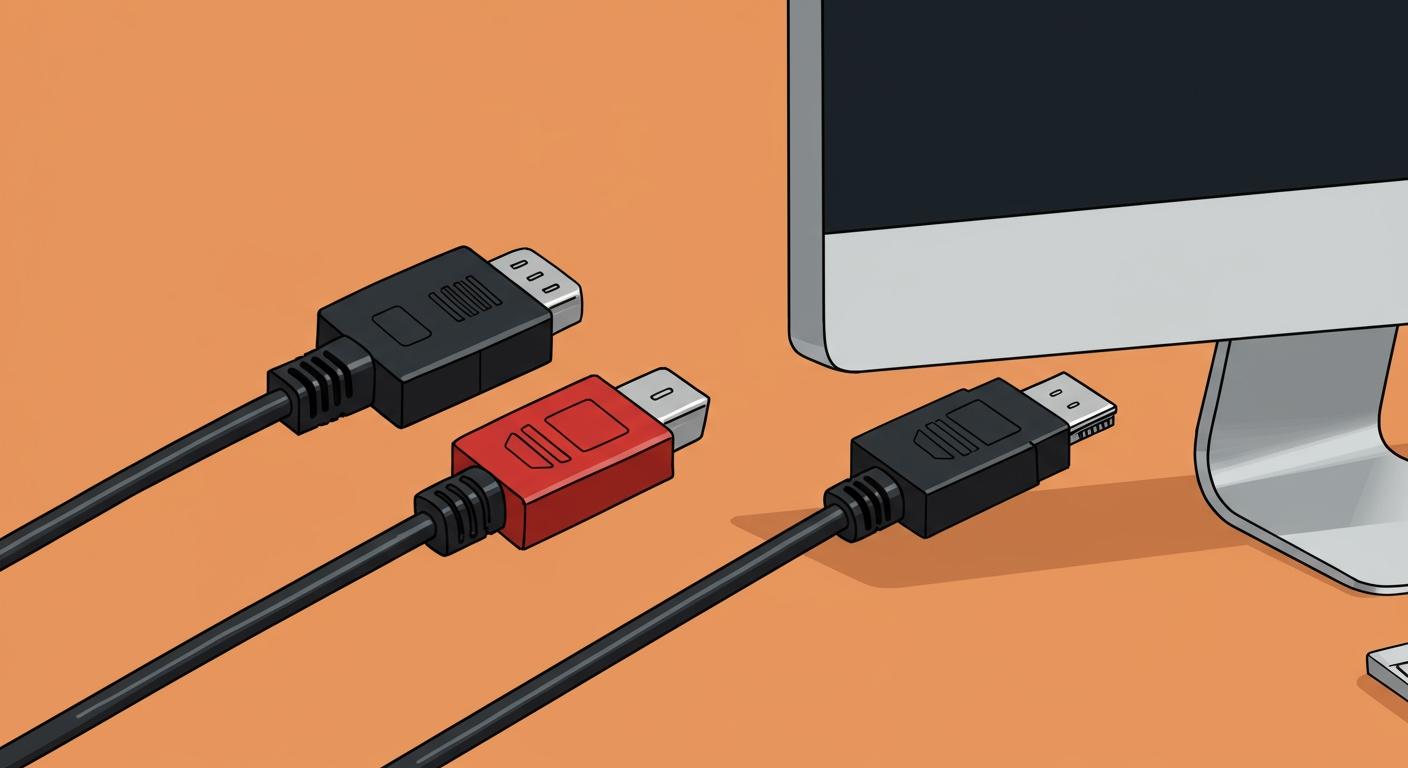
Choosing the right display cable is simple. You can find the best option for your needs with a quick summary.
Quick Guide to Display Cables 🖥️
- HDMI: Use this for most TVs, game consoles, and standard computer monitors. It is the universal choice.
- DisplayPort: You should select this for high-performance PC gaming. It delivers the best frame rates.
- d-sub (VGA): You should only use a d-sub cable for very old devices as a last resort.
This quick guide helps you make the right connection every time.
Key Takeaways
- DisplayPort is best for computer gaming. It gives you smooth motion and high picture quality.
- HDMI works with most TVs and game consoles. It is a good choice for home entertainment.
- D-Sub (VGA) is for old devices only. It gives a blurry picture and does not carry sound.
- USB-C is a new cable that can do many things. It can send video, data, and charge your device.
- Always check your device ports first. This helps you pick the right cable for the best performance.
DISPLAYPORT: FOR GAMING AND PROS
When you connect a PC to a monitor, DisplayPort is your best choice. You get the highest performance, especially for gaming and professional creative work. This cable standard was designed specifically for computers. It unlocks the full power of your graphics card and high-end display.
BEST FOR HIGH REFRESH RATES
You want smooth motion in your games and on your desktop. A high refresh rate, measured in Hertz (Hz), gives you that smoothness. DisplayPort excels at delivering the data needed for high refresh rates.
DisplayPort 1.4 is a popular choice. It provides a massive 32.4 Gbps of bandwidth, which is much more than the 18 Gbps offered by the common HDMI 2.0 standard. This extra bandwidth allows you to run very high refresh rates at high resolutions. For example, you can achieve a blazing-fast 240Hz at 1440p resolution using DisplayPort 1.4.
For competitive gamers, every frame counts. DisplayPort's bandwidth can push refresh rates even higher at 1080p.
| Resolution | Color Depth | DisplayPort 1.2 (HBR2) | DisplayPort 1.4 (HBR3) |
|---|---|---|---|
| 1080p | 8-bit | 288 Hz | 406 Hz |
| 1080p | 10-bit | 240 Hz | 240 Hz |

G-SYNC AND FREESYNC SUPPORT
Have you ever seen a distracting horizontal line tear across your screen during a game? This is called screen tearing. DisplayPort is the best solution to fix it. It fully supports Variable Refresh Rate (VRR) technologies like NVIDIA's G-Sync and AMD's FreeSync.
These features sync your monitor's refresh rate to your graphics card's output. The result is perfectly smooth gameplay with no tearing or stuttering. While some HDMI versions now support VRR, DisplayPort has been the most reliable standard for G-Sync and FreeSync for years. For the best experience, especially with high-end G-Sync Ultimate monitors, you should use DisplayPort 1.4. Future top-tier monitors will likely require DisplayPort 2.1 to match the power of next-generation graphics cards.
DAISY-CHAINING MONITORS
DisplayPort offers a unique feature called Multi-Stream Transport (MST), or daisy-chaining. This lets you connect multiple monitors to your PC using just one DisplayPort cable. You connect the first monitor to your computer and then connect the second monitor to the first one.
Pro Tip: Declutter Your Desk 🧑💻 Daisy-chaining is perfect for creating a clean, minimalist multi-monitor setup. You reduce the number of cables running back to your PC, making your workspace tidier and easier to manage.
To use this feature, you need the right equipment. Your setup must meet these requirements:
- Your monitors must be "daisy chain-ready" or "daisy chain compatible."
- Each monitor in the chain (except the last one) needs both a DisplayPort input and a DisplayPort output port.
- The ports must be DisplayPort version 1.2 or later.
HIGHEST RESOLUTION SUPPORT
If you demand the absolute best image quality, DisplayPort is the answer. Its superior bandwidth not only helps with refresh rates but also supports incredibly high resolutions.
When you use DisplayPort for PC gaming, you get several key benefits:
- It supports the highest refresh rates for the smoothest gameplay.
- It displays the full native resolution of your monitor without compromise.
- It delivers stunning High Dynamic Range (HDR) color.
- It frees up your monitor's HDMI ports for other devices like a PlayStation or Xbox.
The latest version, DisplayPort 2.1, is a true powerhouse. It offers nearly 80 Gbps of usable bandwidth, leaving all other consumer cables behind. This allows it to power the most demanding displays available today and in the future.
DisplayPort 2.1 Maximum Resolution & Refresh Rate
| Resolution | Max Refresh Rate (Without Compression) |
|---|---|
| 1080p | 900Hz |
| 1440p | 500Hz |
| 4K | 240Hz |
| 8K | 60Hz |
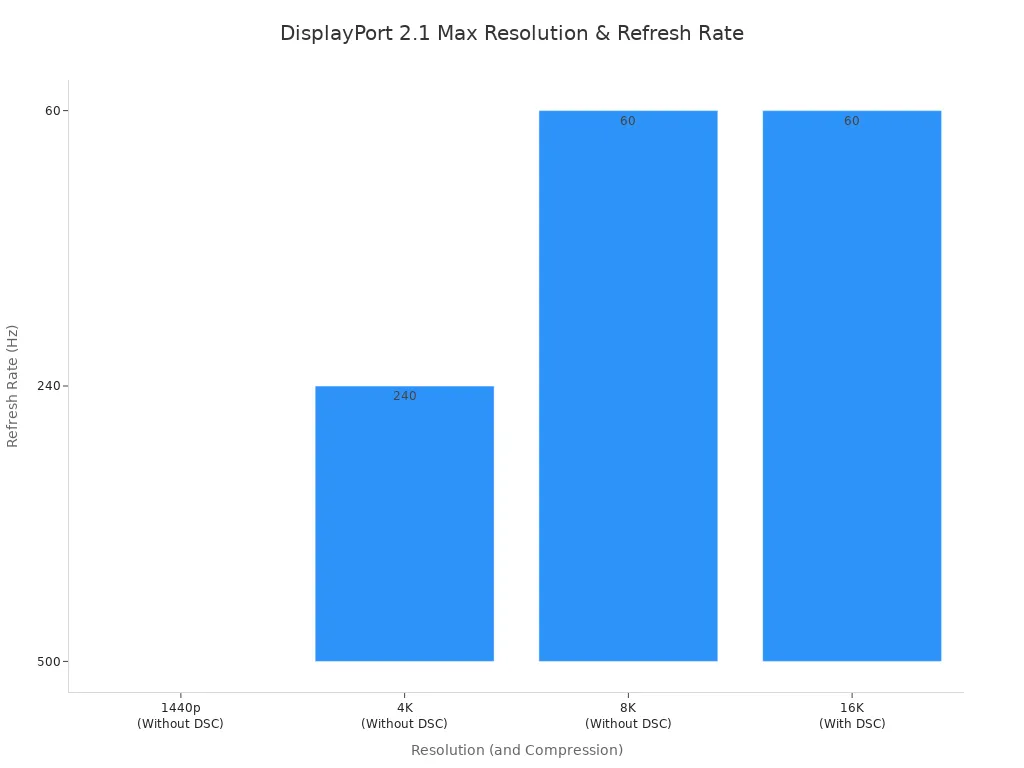
With compression technology (DSC), DisplayPort 2.1 can even run a massive 16K resolution display at a smooth 60Hz. For gamers, professionals, and tech enthusiasts who refuse to compromise, DisplayPort is the clear winner.
HDMI: THE UNIVERSAL STANDARD
You will find the High-Definition Multimedia Interface, or HDMI, on almost every modern entertainment device. It has become the universal standard for connecting your favorite gadgets. HDMI is the most common connector for consumer electronics. You can use it for everything from your TV and game console to your laptop and Blu-ray player.
IDEAL FOR TVS AND HOME THEATER
HDMI is the king of the living room. It is the best choice for connecting devices to your television. Game consoles like the PlayStation, Xbox, and Nintendo Switch are all designed to use HDMI. This ensures you get a reliable connection every time without needing special adapters.
Modern TVs and consoles with HDMI 2.1 ports unlock powerful gaming features.
- Auto Low Latency Mode (ALLM): Your console tells your TV it's time to play a game. The TV then automatically switches to its "game mode." This reduces processing lag for a more responsive feel. You no longer need to find the remote and change the setting yourself.
- Variable Refresh Rate (VRR): This feature syncs your TV's refresh rate to the game's frame rate. It creates incredibly smooth motion and stops screen tearing. For example, you need an HDMI 2.1 connection to use VRR on a PlayStation 5.
- Quick Frame Transport (QFT): QFT reduces the time it takes for a frame to travel from your console to the screen. This further cuts down on input lag, which is a huge benefit in fast-paced action games.
WIDESPREAD DEVICE COMPATIBILITY
You can find an HDMI port on a massive range of electronics. This widespread compatibility makes it an incredibly versatile and reliable cable. It is the standard connection in most conference rooms for projectors and TVs, so you can give presentations without any hassle.
Beyond the living room, you will see HDMI ports on many devices, including:
- Laptops and desktop computers
- Streaming devices like Apple TV and Roku
- Blu-ray and DVD players
- DSLR cameras and camcorders (using Mini or Micro HDMI)
- Tablets and even some smartphones
- Automotive entertainment systems
COMBINED AUDIO AND VIDEO
One of HDMI's biggest advantages is its simplicity. It carries both high-definition video and high-resolution audio signals in a single cable. This cleans up the clutter behind your entertainment center. You no longer need a separate cable just for sound.
Home Theater Simplified with ARC/eARC 🔊
HDMI includes a feature called Audio Return Channel (ARC). It lets your TV send audio back to your soundbar or AV receiver through the same HDMI cable. The newer, enhanced version, eARC, offers much more bandwidth. You need eARC to transmit the highest quality sound formats, like Dolby Atmos and DTS:X, for a truly immersive cinematic experience. To use it, you must connect your devices to the specific HDMI ports labeled "ARC" or "eARC."
HDMI VERSION DIFFERENCES
Not all HDMI cables and ports are the same. The version number determines the cable's capabilities, especially its bandwidth. Higher bandwidth allows for more data, which means higher resolutions and faster refresh rates.
You need to match your cable and device ports to get the best performance. For a smooth 4K picture at 60Hz, you must use at least an HDMI 2.0 cable connected to HDMI 2.0 ports on both your source device and your display.
The latest standard, HDMI 2.1, is a major upgrade.
| HDMI Version | Max Bandwidth | Common Use Case |
|---|---|---|
| HDMI 2.0 | 18 Gbps | 4K at 60Hz |
| HDMI 2.1 | 48 Gbps | 4K at 120Hz, 8K at 60Hz, VRR, eARC |
The massive 48 Gbps bandwidth of HDMI 2.1 is essential for modern gaming consoles and high-end PCs. It unlocks top-tier performance like 4K gaming at 120Hz and the advanced features we discussed earlier. Always check the specifications of your devices to make sure you are using the right connection.
THE LEGACY D-SUB (VGA) CONNECTOR
You might see the classic blue, trapezoid-shaped D-Sub connector, also known as VGA, on older equipment. This connection is an analog technology from a different era of computing. You should only use it when you have no other choice.
FOR OLDER HARDWARE ONLY
You will most likely find a d-sub port on legacy hardware. Many older projectors, monitors, and desktop computers still rely on this connection. You can often see them in schools, government offices, and meeting rooms that have not been updated. If you need to connect a modern laptop to one of these older displays, you may need a d-sub adapter.
ANALOG SIGNAL AND QUALITY LOSS
The biggest drawback of a d-sub connection is its analog signal. Unlike the crisp digital signals of HDMI and DisplayPort, an analog signal is prone to quality loss and interference from other electronics. This can cause a blurry or flickering image. The problem gets worse with longer cables.
Cable Length and Quality 📉
The quality of a VGA signal drops significantly over distance. For the best picture, you should keep the cable as short as possible.
Cable Length Expected Video Quality Up to 25 feet High-quality 26-100 feet Mid-level quality Over 100 feet Low-quality
While VGA can technically show resolutions like 1024x768, the image will never be as sharp as a digital connection. On modern 4K displays, the quality loss is very noticeable.
NO AUDIO SUPPORT
The VGA standard was designed to transmit only video signals. This means you get no sound through a d-sub cable. If you connect a computer to a display with speakers using VGA, you must use a separate audio cable to hear anything. This adds extra cable clutter and complication compared to the all-in-one convenience of HDMI.
WHY TO AVOID IT
You should avoid using a VGA connection whenever possible. It cannot support the features modern users expect.
- It does not have the bandwidth for high refresh rates like 120Hz.
- It does not support gaming features like G-Sync or FreeSync.
- The analog signal degrades easily, resulting in a fuzzy picture.
- It requires a separate cable for audio.
For these reasons, you should always choose a digital connection like HDMI or DisplayPort if your devices support it.
OTHER CONNECTORS: DVI AND USB-C
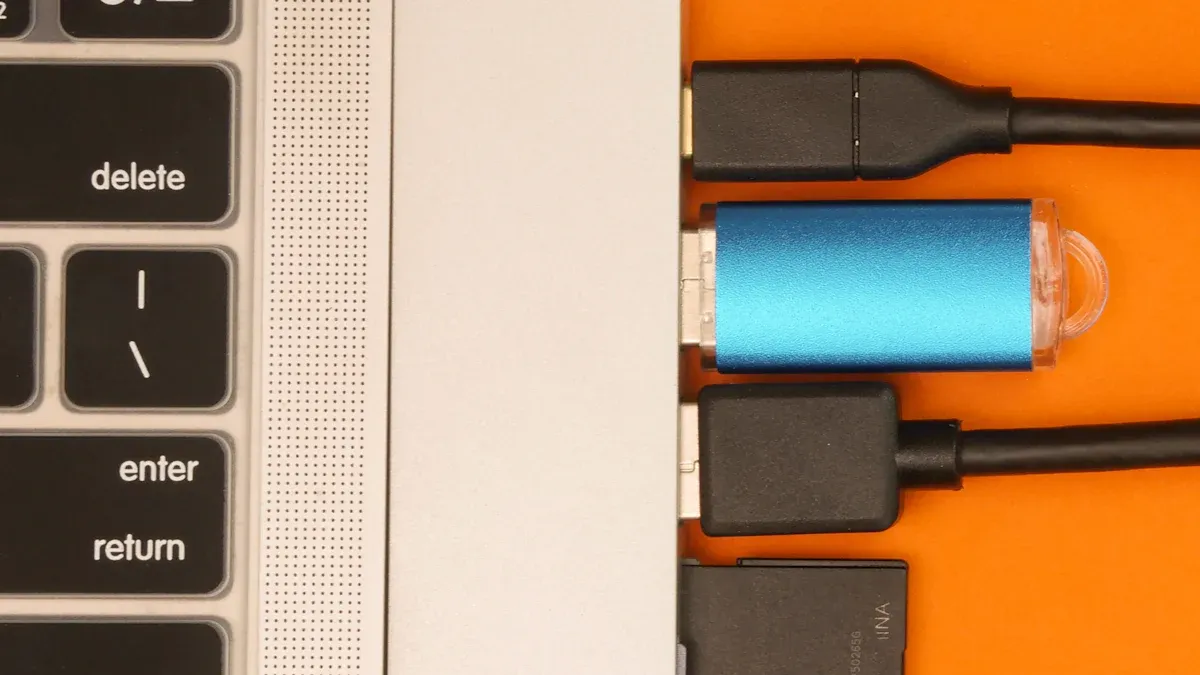
You may also encounter DVI and USB-C ports on your devices. These connectors serve different purposes, one acting as a bridge from the past and the other pointing to the future.
DVI: THE DIGITAL BRIDGE
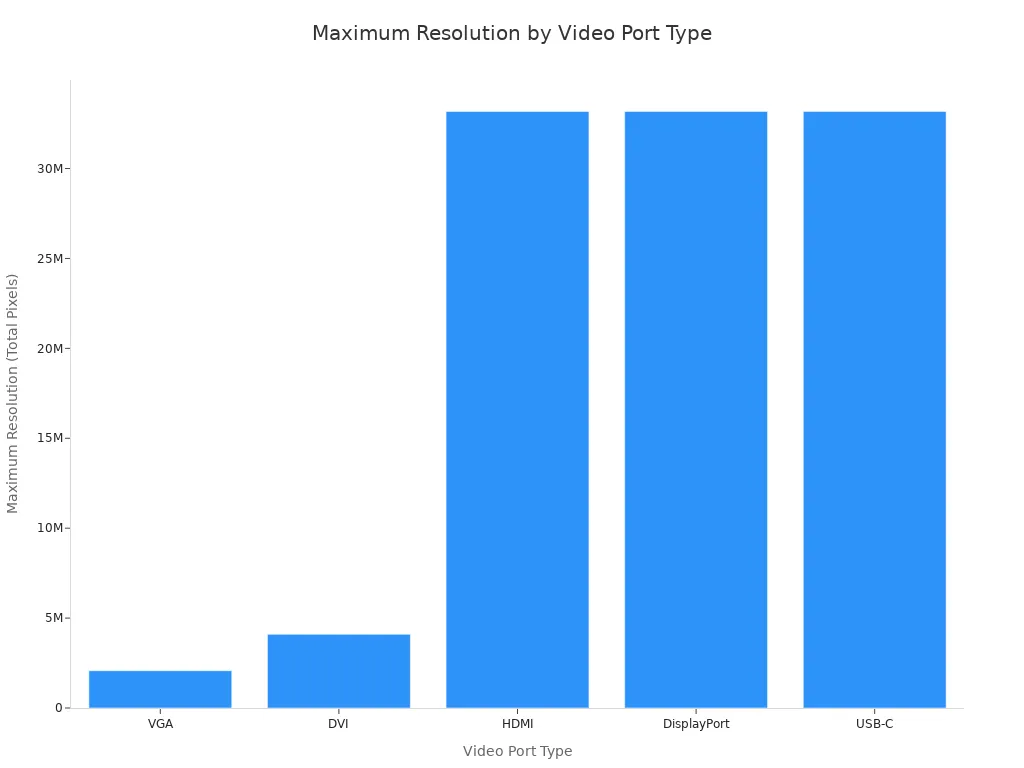
You can think of the Digital Visual Interface (DVI) as the link between old analog and new digital video. It appeared after VGA to offer a better digital picture. You will often find this large, white connector on older computer monitors and graphics cards.
DVI improved on VGA by supporting a digital signal. This meant you got a sharper image. However, most DVI connections only carry video, so you still need a separate cable for audio. There are a few types of DVI, but the most important one for you to know is DVI-D, which is digital-only. It can provide a good quality picture up to 2560x1600 resolution, but it cannot compete with modern standards.
USB-C: THE MODERN ALL-IN-ONE
USB-C is the small, oval-shaped connector you see on most new laptops, tablets, and phones. It is the true all-in-one solution. A single USB-C cable can handle video, transfer data, and even charge your device at the same time.
One Cable to Rule Them All ✨ With USB-C, you can connect your laptop to a monitor and charge it simultaneously, all with one cable. This keeps your desk clean and simple.
USB-C sends video using a special feature called DisplayPort Alternate Mode (DP Alt Mode). This mode lets the USB-C port act like a DisplayPort connection. It repurposes some of its internal pins to send high-quality video and audio. This allows USB-C to support the same high resolutions and refresh rates as DisplayPort, including 4K and even 8K.
For this to work, your device, cable, and monitor must all support DP Alt Mode. When they do, you get top-tier performance from a simple, reversible connector.
You can now choose the right cable with confidence. This quick-reference table summarizes the best option for your needs.
| Feature | DisplayPort | HDMI | d-sub (VGA) |
|---|---|---|---|
| Best Use Case | PC Gaming | TVs & Consoles | Old Hardware |
| Max Quality | 8K+ & 240Hz+ | 4K at 120Hz | Low Resolution |
| Verdict | Best for PCs | Universal Choice | Avoid If Possible |
Final Tip 💡 Always check the ports on your computer and display first. You can then pick the perfect cable to unlock the best performance from your equipment.
FAQ
Can I use an HDMI cable for a DisplayPort monitor?
Yes, you can use an adapter. You can find adapters that let you connect an HDMI source to a DisplayPort monitor, or vice versa. However, you might lose some features. For example, an adapter may not support high refresh rates or G-Sync.
Does a more expensive cable give a better picture?
For digital signals like HDMI and DisplayPort, a more expensive cable does not improve picture quality. You just need a cable that is certified for the version you need (e.g., HDMI 2.1). A working cable will give you a perfect picture.
Which cable is best for a 144Hz monitor?
You should use DisplayPort for a 144Hz monitor. It offers more bandwidth than most HDMI versions. This ensures you get the full 144Hz refresh rate for the smoothest gaming experience. Always check that your graphics card and monitor both have DisplayPort.
What happens if I use the wrong HDMI version?
You might not get the best performance from your devices. For example, using an old HDMI 1.4 cable with a PlayStation 5 and a 4K TV means you cannot get 120Hz. Your picture will be limited to 4K at 60Hz.