A Complete Guide to Choosing the Right Video Cable
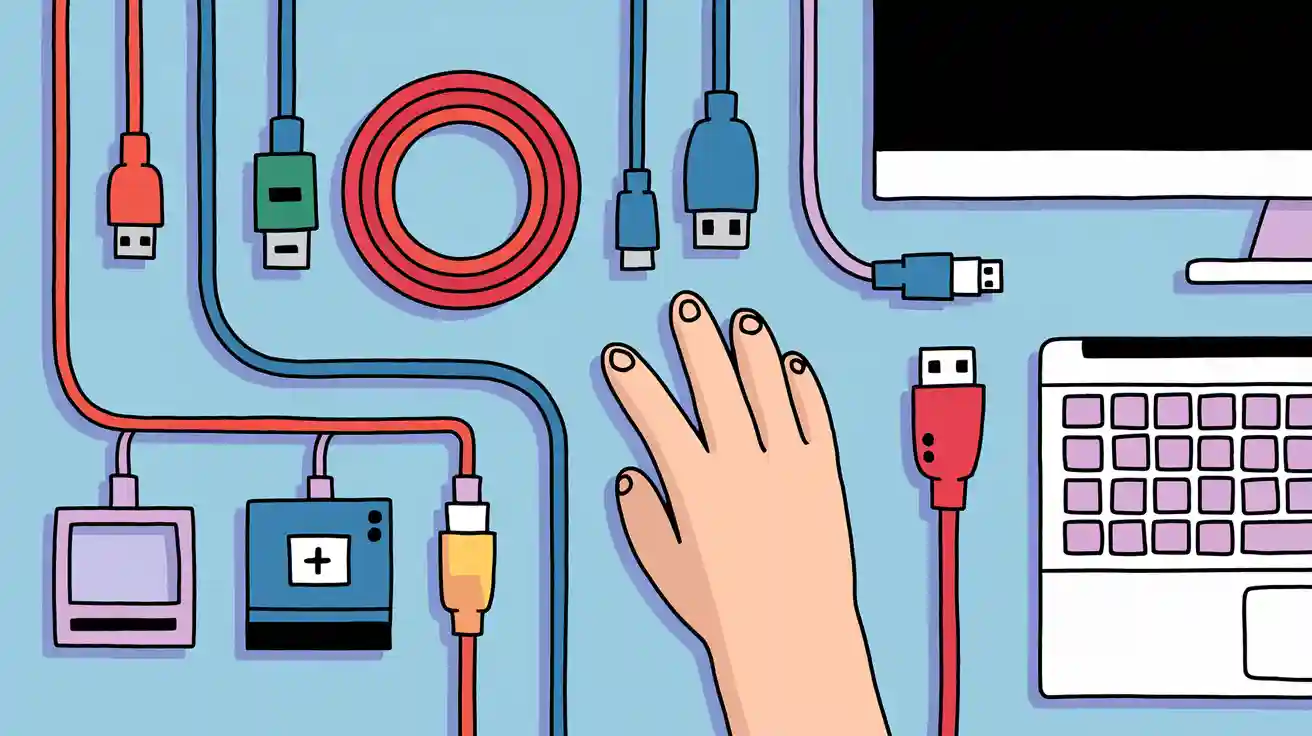
You want to know which video cable fits your setup best. Imagine you just bought a new gaming console or a high-resolution monitor. You look at the back and see several ports, but you feel unsure about which video cables will work. Many people make common mistakes when choosing video cables. They forget to check the cable specifications, fall for marketing claims about expensive video cables, or pick cables that do not meet performance standards. The features and compatibility of video cables matter because they affect how well your devices work together. High-quality video cables help keep signal strength strong. If you use video cables with poor materials or the wrong design, you might lose picture quality or even fail to connect your devices. Some video cables support high data transfer rates, while others focus on signal integrity. You need to match the right cable to your device and think about your needs, whether you want video cables for home entertainment, gaming, work, or older devices. There are many video cable types, so it is important to choose carefully.
Key Takeaways
- Choose the right video cable type based on your devices. HDMI and DisplayPort are best for modern setups, while VGA and RCA work for older devices.
- Always check the specifications of the cable. Look for support for high resolutions and refresh rates to ensure the best picture and sound quality.
- Keep cable lengths short to maintain signal quality. Longer cables can lead to flickering or loss of picture.
- Invest in high-quality cables with durable materials. This choice ensures longevity and reliable performance for your devices.
- Consider future-proofing your setup. Select cables that support upcoming technologies to save money and time on upgrades.
Video Cable Types Overview
When you look at all the video cable types available today, you might feel overwhelmed. Each type has its own strengths and best uses. You need to know the differences so you can pick the right cable for your devices. Let’s break down the main video cable types into three groups: digital, analog, and hybrid or specialized cables.
Digital Video Cables
Digital video cables send signals as data, which means you get clearer images and sound. These cables have become the standard for most modern devices. You will find them on TVs, monitors, computers, and gaming consoles. The most widely adopted digital video cable types include:
- HDMI: This cable is everywhere. You use it for TVs, gaming consoles, Blu-ray players, and even some computers. HDMI carries both video and audio in one cable, making it simple to set up your devices.
- DisplayPort: You often see this cable in high-performance computers and gaming setups. DisplayPort supports higher bandwidth, so you can use it for multiple monitors or very high resolutions.
- DVI: This cable still appears in some monitors and older computers. DVI handles high-resolution video but does not carry audio.
Digital video and audio signals travel together in HDMI and DisplayPort cables, which makes them very convenient. These video cable types help you get the best picture and sound quality from your devices.
Tip: If you want the highest quality for gaming or movies, choose HDMI or DisplayPort. These video cable types support 4K and even 8K resolutions.
Analog Video Cables
Analog video cables use electrical signals to send images. You see these cables more often with older devices. They do not support high resolutions like digital cables, but they still work well for many uses. The most common analog video cable types include:
- VGA: This cable connects older monitors and projectors. VGA only carries video, so you need a separate cable for sound.
- rca: You find rca cables on many older TVs, DVD players, and game consoles. rca cables come in sets of three: yellow for video, red and white for audio. Some setups use rca cables for component video, which splits the signal into three cables for better quality.
- S-Video: This cable offers better picture quality than standard rca cables but is less common today.
You might still use analog video cable types if you have legacy equipment. rca cables remain popular for connecting VCRs, older gaming systems, and some audio gear.
Note: If your device only has rca or VGA ports, you need to use those video cable types. Adapters can help you connect old devices to new screens.
Hybrid and Specialized Cables
Some video cable types combine features from both digital and analog cables. Others serve special roles in professional setups. Hybrid and specialized cables help you connect devices that need unique solutions.
Tactical SMPTE camera cables stand out in professional AV setups. These cables have a rugged design that resists damage from rough use and harsh weather. You see them at live events and broadcasts. SMPTE camera cables deliver high-quality signals with no loss, which is important for professionals who need reliable video and audio. Their lightweight and flexible build makes them easy to set up and move.
You also find mini and micro versions of HDMI and DisplayPort. These smaller cables fit compact devices like cameras, tablets, and laptops. Some adapters let you connect digital devices to analog inputs, such as HDMI to rca converters. These hybrid video cable types help you bridge the gap between old and new technology.
Pro Tip: If you work with cameras or AV equipment, look for specialized cables that match your needs. SMPTE and other hybrid cables give you the reliability and flexibility you need for demanding jobs.
When you understand the main video cable types—digital, analog, and hybrid—you can make better choices for your setup. Whether you use HDMI, DisplayPort, rca, or a specialized cable, knowing what each type does helps you get the best performance from your devices.
HDMI and Other Monitor Cable Types
When you look at monitor cable types, you see many options. Each cable has its own strengths. You need to know which cable works best for your devices. Let’s explore the most common monitor cable types you will find today.
HDMI
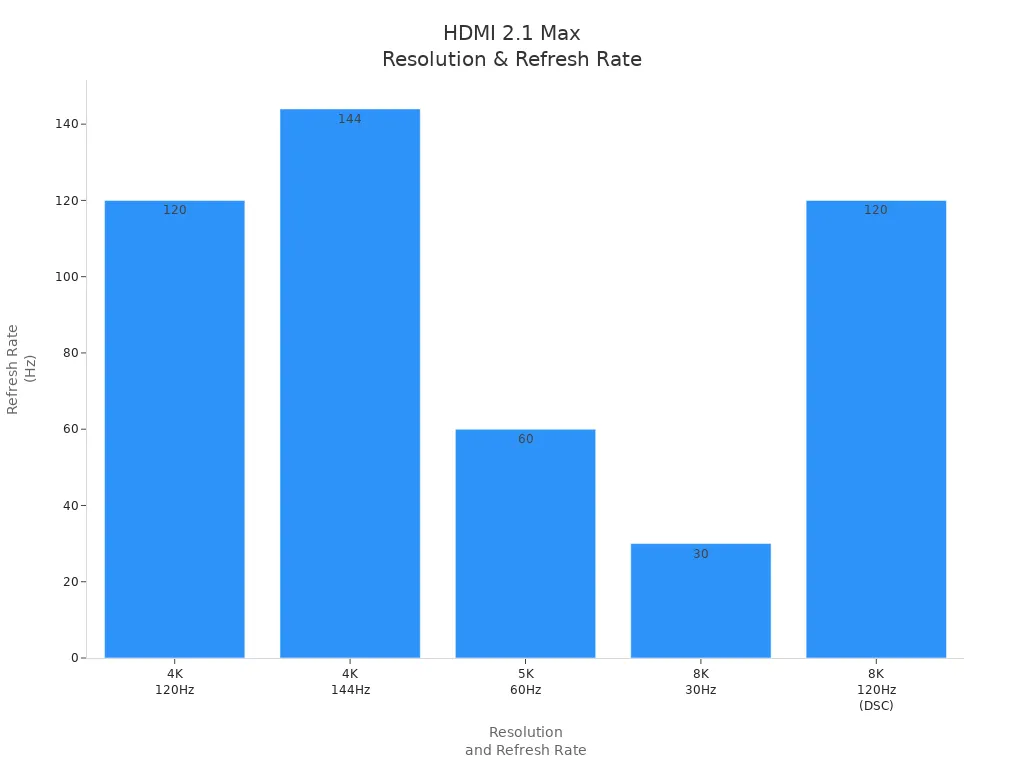
HDMI cables are the most popular monitor cable types for TVs, monitors, and gaming consoles. You use an hdmi connector to send both video and audio through one cable. This makes setup easy. Modern hdmi cables support high resolutions and fast refresh rates. For example, HDMI 2.1 cables can handle up to 4K at 120Hz, 4K at 144Hz, 5K at 60Hz, and even 8K at 120Hz with DSC. You can see the details in the table below:
| Resolution | Refresh Rate |
|---|---|
| 4K | 120Hz |
| 4K | 144Hz |
| 5K | 60Hz |
| 8K | 30Hz |
| 8K | 120Hz (with DSC) |
| Up to 10K | N/A |
You find hdmi cables in almost every home. They work well for movies, games, and streaming. If you want the best picture and sound, choose the latest hdmi cables.
DisplayPort
DisplayPort cables are another top choice among monitor cable types. You often see displayport in gaming PCs and high-end monitors. Displayport cables support higher bandwidth than hdmi cables. DisplayPort 2.0 can reach up to 80 Gbps, while HDMI 2.1 tops out at 48 Gbps. This means displayport cables can handle up to 16K resolution. Here is a quick comparison:
| Feature | DisplayPort 2.0/2.1 | HDMI 2.1 |
|---|---|---|
| Maximum Bandwidth | Up to 80 Gbps | Up to 48 Gbps |
| Maximum Resolution | Up to 16K | Up to 10K |
| Compression Support | Yes | Yes |
| Refresh Rate Support | High at lower res | High at lower res |
| Gaming Support | Nvidia and AMD | Nvidia and AMD |
Displayport cables work well for multi-monitor setups and high refresh rates. You get smooth visuals for gaming and design work.
DVI
DVI is one of the older monitor cable types, but you still see it on some monitors and PCs. A dvi connector only sends video, not audio. DVI supports high resolutions, but not as high as hdmi or displayport. You may use dvi when you connect older monitors or need a stable signal for basic tasks. DVI comes in several versions, such as DVI-D (digital), DVI-A (analog), and DVI-I (integrated).
VGA
VGA is the oldest of the common monitor cable types. You find VGA on legacy monitors and projectors. VGA only sends video and has limits on resolution and color. The table below shows what VGA can do:
| Resolution/Color Depth | Description |
|---|---|
| 320x200 with 4 colors | 2-bit |
| 320x200 with 16 colors | 4-bit |
| 640x350 with 16 colors | 6-bit |
| 640x480 with 16 colors | 8-bit |
| 800x600 and 1024x768 | Dependent on RAM |
| 18-bit total | Maximum color depth for VGA |
| 262144 colors | Total colors supported by VGA |
You should use VGA only if your device does not support newer monitor cable types.
Mini-HDMI and Micro-HDMI
Mini-HDMI and Micro-HDMI are smaller versions of the standard hdmi connector. You see these monitor cable types on portable devices. Common devices that use mini-hdmi and micro-hdmi include:
- Digital cameras
- Camcorders
- Smartphones
- Tablets
- Projectors
These hdmi cables let you connect small devices to larger screens. You get the same video and audio quality as regular hdmi cables, but in a compact form.
Tip: Always check your device’s port before buying hdmi cables or displayport cables. The right monitor cable types make setup easy and give you the best performance.
Video Connectors Explained
Physical Connector Differences
You see many video connector types when you look at the back of your devices. Each connector has a unique shape and size. HDMI connectors have a flat, wide design. DisplayPort connectors look similar but have one corner cut at an angle. DVI connectors are larger and have more pins. VGA connectors use a blue, trapezoid shape with 15 pins. USB-C connectors are small and oval, fitting into modern laptops and tablets.
Here is a quick guide to help you recognize the main video connectors:
- HDMI: Flat and wide, easy to plug in.
- DisplayPort: Similar to HDMI, but with a slanted corner.
- DVI: Large, with many pins.
- VGA: Blue, trapezoid, 15 pins.
- USB-C: Small, oval, reversible.
Tip: Always match the connector shape to the port on your device. This helps you avoid damage and ensures a secure fit.
Device Compatibility
Choosing the right video connectors affects how well your devices work together. You need to check the ports on your monitor, TV, or computer. Some devices support more than one video connector type. Others only work with one.
The choice of monitor port is crucial in optimizing a system for gaming or productivity. HDMI 2.1 and DisplayPort 2.1 offer high bandwidth for advanced display technology. USB-C serves as a universal standard, combining video, data, and power. Gamers prefer DisplayPort for high refresh rates and resolutions. Productivity users favor USB-C for its ease of use and clean setup.
Here is a table showing how different monitor ports affect compatibility in multi-monitor setups:
| Monitor Port Type | Resolution Support | Refresh Rate | Compatibility |
|---|---|---|---|
| HDMI | High | Moderate | Good |
| DisplayPort | Very High | High | Excellent |
| USB-C | High | Moderate | Versatile |
You should always check device compatibility before buying cables. If you want to connect several monitors, look for ports that support high resolutions and refresh rates. DisplayPort works best for gaming setups. USB-C gives you a clean and simple workspace. HDMI fits most home entertainment systems.
Note: Matching the right video connector types to your devices improves compatibility and performance.
Types of Audio Video Cables Compared
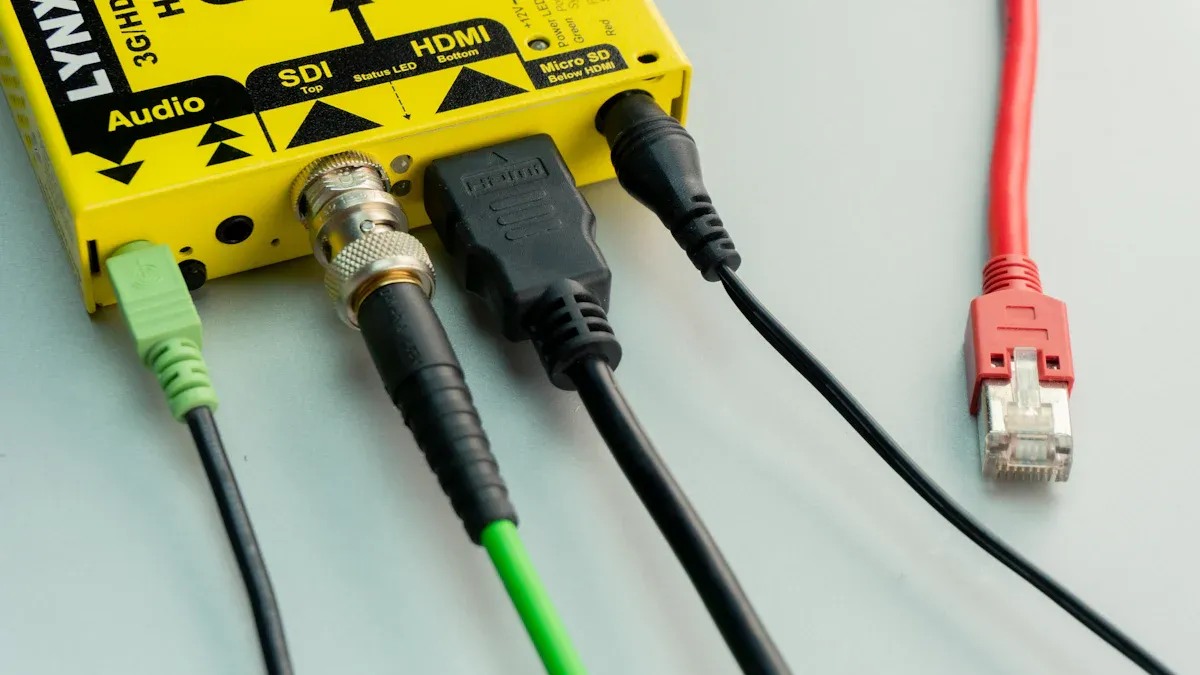
When you compare the types of audio video cables, you see big differences in performance and features. Each cable type affects the quality of your picture and sound. You want to choose the best audio video cables for your needs, so let’s look at what sets them apart.
Resolution and Refresh Rate Support
Not all types of audio video cables can handle the same picture quality. Some cables support ultra-high resolutions and higher refresh rates, which give you smoother images and sharper details. HDMI 2.1 stands out for supporting 4K at 120Hz and even 8K at 60Hz. DisplayPort 2.0 goes even further, reaching up to 16K. DVI can handle 1080p, but it does not match the latest standards. VGA and analog cables work with lower resolutions and do not support high refresh rates.
| Cable Type | Max Resolution | Max Refresh Rate | Special Features |
|---|---|---|---|
| HDMI 2.1 | 8K@60Hz, 4K@120Hz | 240Hz (DSC) | Dynamic HDR, VRR, ALLM |
| DisplayPort | Up to 16K | 240Hz | Multi-monitor support |
| DVI | 1920x1200 (HD) | 60Hz | Digital only (DVI-D) |
| VGA | 1920x1080 (max) | 60Hz | Analog signal |
| RCA/S-Video | 480p/576p | 60Hz | Analog only |
If you want the best quality for gaming or movies, pick HDMI 2.1 or DisplayPort. These types of audio video cables deliver top performance.
Audio Transmission Capabilities
You need to know which types of audio video cables carry both sound and picture. HDMI cables send audio and video together, making setup simple. DisplayPort can send audio, but not all devices support this feature. DVI and VGA do not carry sound, so you need a separate cable for audio. RCA cables can send both audio and video, but the quality is much lower.
| Feature | HDMI | DisplayPort | DVI | VGA | RCA |
|---|---|---|---|---|---|
| Audio Transmission | Yes | Limited | No | No | Yes |
| Audio Return Channel | Yes | No | No | No | No |
| Ethernet Support | Yes | No | N/A | N/A | No |
HDMI cables give you the highest quality for audio and video transmission in one cable.
Durability and Build Quality
The build quality of audio video cables matters for long-term use. HDMI and DisplayPort cables use strong connectors and thick shielding. This design protects the signal and keeps the quality high. DVI cables are sturdy but bulky. VGA and RCA cables can wear out faster, especially if you move them often. You should look for cables with gold-plated connectors and braided jackets for the best durability.
- HDMI and DisplayPort: Strong build, reliable for daily use.
- DVI: Durable but less flexible.
- VGA and RCA: Prone to signal loss and wear.
Choose high-quality types of audio video cables to keep your setup working well for years.
Choosing the Right Video Cable
Assessing Your Devices
You need to start by looking at the ports on your devices. Each device supports different video cable types. If you want the best monitor cable type for your setup, you must match the cable to the port. Some ports work with adapters, but direct connections give you the strongest signal.
- VGA appears on older equipment. You may need a converter to connect it to new devices.
- HDMI is the most common port in TVs, gaming consoles, and monitors. It works with almost every modern device.
- DisplayPort is strong in high-end monitors and graphics cards. You see it less often on TVs.
- DVI shows up on older and professional monitors. You often need adapters for new devices.
- usb-c is popular in laptops and smartphones. It can send data, video, and audio. Not every usb-c port supports video, so check your device’s manual.
If you want the best monitor cable type for gaming or high-resolution work, look for HDMI or DisplayPort. For new laptops and tablets, usb-c gives you a simple and clean connection. Thunderbolt cables also use the usb-c shape and support fast data and video transfer. Thunderbolt works well for advanced monitors and docking stations.
Tip: Always check your device’s ports before buying a cable. This step helps you avoid returns and keeps your signal strong.
Signal Quality and Cable Length
Signal quality drops if you use a cable that is too long or not built well. You want to keep your cable as short as possible for the best results. Both HDMI and DisplayPort cables have limits for how far they can send a clear signal, especially at higher resolutions.
Here is a table to help you choose the right cable length for your needs:
| Cable Type | Maximum Length for 4K | Maximum Length for 8K |
|---|---|---|
| HDMI 2.1 | 15 meters | 15 meters |
| HDMI 2.0 | 20 meters | N/A |
If you need to run a cable farther than these limits, you should use an active cable or a signal booster. These tools help keep your signal quality high. For usb-c and thunderbolt cables, shorter lengths also give you better signal. Thunderbolt cables can carry video, data, and power, but long cables may lower performance.
You should also look at the build quality. Cables with gold-plated connectors and thick shielding protect your signal from outside interference. This design keeps your picture and sound clear. If you want the best monitor cable type for your setup, always choose a cable that matches your device’s needs and keeps the signal strong.
Note: Poor signal quality can cause flickering, color loss, or no picture at all. Always test your cable before setting up your devices.
Future-Proofing Your Setup
You want your setup to last as long as possible. Future-proofing means picking cables that support new display technologies. If you plan to upgrade your monitor or TV soon, you should choose cables that handle higher resolutions and faster refresh rates.
Here is a table showing which cables are ready for the future:
| Feature | HDMI 2.2 Specification | Ultra96 HDMI Cable |
|---|---|---|
| Bandwidth | Up to 96Gbps | Supports all HDMI 2.2 applications |
| Supported Resolutions | Up to 12K@120, 16K@60 | Up to 12K@120, 16K@60 |
| Color Depth | 10-bit and 12-bit color | 10-bit and 12-bit color |
| EMI Emission | N/A | Very low EMI emission |
| Compatibility | N/A | Compatible with existing HDMI devices |
If you want the best monitor cable type for future-proofing, pick HDMI 2.2 or Ultra96 HDMI cables. These cables support up to 16K resolution and high color depth. usb-c and thunderbolt cables also help with future-proofing. They support new monitors and docking stations. Thunderbolt cables give you fast speeds and work with many devices.
Pro Tip: Buy cables that support more than your current needs. This step saves you money and time when you upgrade your devices.
Common Applications
Home Entertainment
You want your home entertainment system to deliver clear pictures and rich sound. HDMI cables work best for most TVs, streaming devices, and soundbars. These cables carry both video and audio, so you only need one cable for each device. Many modern TVs and Blu-ray players use HDMI as the main connection. If you use a sound system, look for HDMI ARC (Audio Return Channel) support. This feature lets your TV send audio back to your soundbar or receiver. For older TVs, you might still see RCA or component cables. These cables work, but they do not support high-definition video.
Tip: Use the shortest HDMI cable possible for your setup. Shorter cables help keep your signal strong and your picture clear.
Gaming
You need fast and smooth visuals for gaming. HDMI 2.1 and DisplayPort 1.4 cables support high refresh rates and resolutions. These cables help you get the most out of your gaming monitor or console. Gamers often choose these cables for their ability to handle 4K at 120Hz. The table below shows how HDMI 2.1 and DisplayPort 1.4 compare:
| Cable Type | Maximum Bandwidth | Maximum Resolution | Refresh Rate |
|---|---|---|---|
| HDMI 2.1 | 48 Gbps | 8K at 120Hz | 4K at 120Hz |
| DisplayPort 1.4 | 32.40 Gbps | 8K at 30Hz | 4K at 120Hz |
If you want the smoothest gameplay, pick one of these cables. Always check your monitor and graphics card to see which ports they support.
Professional Use
You need reliable cables for work and creative projects. DisplayPort cables work well for multi-monitor setups and high-resolution displays. Many offices use DisplayPort for its ability to connect several screens with one cable. USB-C cables also appear in modern offices. These cables can carry video, data, and power. If you use a docking station, USB-C or Thunderbolt cables make your workspace tidy and efficient.
Note: For design or video editing, choose cables that support high color depth and resolution. This choice helps you see every detail in your work.
Legacy Devices
You may still use older devices that do not support HDMI or DisplayPort. VGA and RCA cables connect these legacy devices to monitors or TVs. VGA cables send video only, so you need a separate cable for sound. RCA cables carry both audio and video, but the quality is lower than digital cables. If you want to connect old game consoles or VCRs, these cables remain useful.
- VGA: Good for old monitors and projectors.
- RCA: Works with VCRs, DVD players, and classic game systems.
Adapters can help you connect legacy devices to modern screens. Always check your device’s ports before buying a cable.
Choosing the right video cable helps you get the best picture and sound. Always match the cable type to your device and what you want to do. Use the table below to remember the most important factors:
| Key Factor | Description |
|---|---|
| Cable Type | Pick HDMI or DisplayPort for most modern setups. |
| Bandwidth Needs | Make sure the cable supports your resolution. |
| Cable Length | Shorter cables keep signals strong. |
| Durability | High-quality cables last longer. |
| Compatibility | Check if the cable fits your device’s ports. |
| Feature Support | Look for extra features like ARC or VRR. |
| Cost | Balance quality and price. |
Before you buy, check your device’s ports:
- Look at your device and find the port shapes.
- Use your computer’s settings to see port details.
For more help, see the FAQ section for quick answers.
FAQ
Which video cable gives the best picture quality?
You get the best picture quality from HDMI 2.1 or DisplayPort 2.0 cables. These cables support high resolutions and fast refresh rates.
Tip: Always check your device’s ports before buying a cable.
Can I use adapters to connect old devices to new screens?
You can use adapters to connect old devices. For example, VGA-to-HDMI adapters help you link older computers to modern monitors.
- Always check compatibility before buying an adapter.
How long can my video cable be without losing signal?
Most HDMI cables work well up to 15 meters. DisplayPort cables support similar lengths.
| Cable Type | Max Length (meters) |
|---|---|
| HDMI | 15 |
| DisplayPort | 15 |
Do all HDMI cables support audio?
You get both audio and video with most HDMI cables. Some older HDMI cables may not support advanced audio features.
Note: Always check the cable version for extra features like ARC or eARC.