Monitor Port and Cable Terms Explained
The main monitor cable types help connect a computer to a monitor. This guide explains each monitor cable type, helping users choose the right connection for their setup. It acts as a simple glossary to demystify common tech terms for every monitor.
The primary display cable types are:
- HDMI
- DisplayPort
- USB-C
- DVI
- VGA
Understanding these types is important. A specific monitor cable type, like DisplayPort or HDMI, affects monitor performance. Knowing all monitor cable types, including the versatile USB-C, ensures the best picture from any monitor.
Key Takeaways
- Different cables connect your computer to your monitor. HDMI, DisplayPort, and USB-C are the main types.
- HDMI is good for TVs and game consoles. DisplayPort is best for high-speed computer gaming.
- USB-C cables can send video, data, and power. They are great for laptops and docking stations.
- Always match your cable to your monitor and computer ports. This gives you the best picture.
- Certified cables ensure good quality. You do not need expensive cables for a clear picture.
AN OVERVIEW OF DISPLAY CABLE TYPES:
Before exploring the different monitor cable types, it is helpful to understand a few basic terms. A Port is the socket on your computer or monitor. A Connector is the end of the cable that plugs into the port. A Protocol is the technology that sends the digital signal for video and data between devices. Understanding these parts helps you choose the correct monitor cable type.
UNDERSTANDING HDMI:
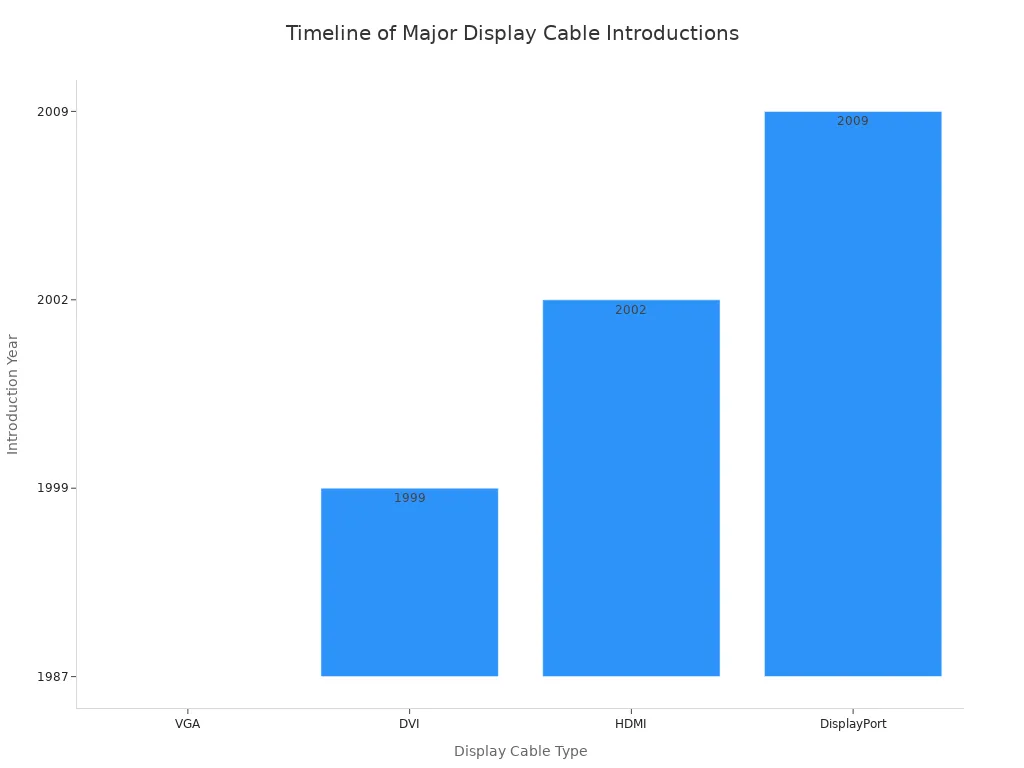
HDMI stands for High-Definition Multimedia Interface. It is one of the most common display cable types available today. HDMI cables carry both digital video and audio signals. This makes them a popular choice for a wide range of devices. Game consoles, laptops, and surveillance recorders often use HDMI to connect to a monitor or TV. The first version of HDMI appeared in 2002, starting a new era for digital connections.
Modern HDMI comes in different versions. Each version offers improved capabilities, especially in bandwidth and resolution.
| Feature | HDMI 2.0 | HDMI 2.1 (Latest Version) |
|---|---|---|
| Maximum Bandwidth | 18 Gbps | 48 Gbps |
| Max Resolution/Refresh | 4K@60Hz, 8K@30Hz | 4K@120Hz, 8K@60Hz |
| HDR Support | Standard HDR (e.g., HDR10) | Dynamic HDR (frame-by-frame adjustment) |
| Gaming Enhancements | Limited | Variable Refresh Rate (VRR), Auto Low Latency Mode (ALLM) |
| Audio Return Channel | ARC (supports compressed audio formats) | eARC (supports high-bitrate audio like Dolby Atmos) |
Tip: For home theater systems, HDMI offers a feature called Enhanced Audio Return Channel (eARC). This technology simplifies connections and supports high-bitrate audio formats like Dolby Atmos. It allows a single HDMI cable to handle complex audio and video transmission, sending the best sound from your TV to a soundbar or receiver.
THE POWER OF DISPLAYPORT:
DisplayPort is another powerful digital interface for connecting a computer to a monitor. The Video Electronics Standards Association (VESA) developed DisplayPort. It is a favorite for PC gaming and professional productivity tasks. DisplayPort often provides higher bandwidth than HDMI, which is essential for achieving very high resolutions and refresh rates.
DisplayPort technology has advanced significantly. Its versions support demanding video needs.
- DisplayPort 1.4 supports a resolution up to 8K at 60Hz or 4K at 120Hz.
- DisplayPort 2.1 offers a massive 80 Gbps of bandwidth. This allows it to drive a 4K monitor at 240Hz or even support ultra-high resolutions like 16K at 60Hz.
For gaming, DisplayPort is crucial for technologies like AMD FreeSync. It uses the DisplayPort Adaptive-Sync standard. This feature synchronizes the monitor's refresh rate with the graphics card's output. The result is smoother gameplay without screen tearing. DisplayPort also has a unique feature called Multi-Stream Transport (MST). MST allows a user to connect multiple monitors in a "daisy-chain" from a single DisplayPort output on a computer. The signal travels to the first monitor, which then passes the correct data to the next monitor in the chain.
THE VERSATILITY OF USB-C:
USB-C is a connector shape, not a specific monitor cable type itself. Its small, reversible design makes it very convenient. The power of USB-C comes from the protocols it can support. These protocols allow it to transmit video, data, and power over a single cable.
A USB-C port can use "DisplayPort Alternate Mode" to send a video signal directly to a monitor. However, the most powerful protocol that uses the USB-C connector is Thunderbolt. Thunderbolt technology combines high-speed data transfer, video output, and power delivery into one port.
Important: Not all USB-C ports are the same. A basic USB-C port might only transfer data. A USB-C port with Thunderbolt 3 or Thunderbolt 4 offers much more. Thunderbolt 4 guarantees 40 Gbps of bandwidth, support for two 4K monitors, and high-speed data transfer. This makes Thunderbolt ideal for complex docking stations that connect a laptop to multiple monitors and other high-speed devices. Thunderbolt provides superior flexibility for managing bandwidth across many peripherals.
KEY CONNECTOR COMPARISON:
Choosing the right monitor cable type depends on your devices and what you want to achieve. HDMI is great for general use, while DisplayPort excels at high-performance PC gaming. USB-C with Thunderbolt offers the best all-in-one solution for modern laptops and productivity. This table summarizes the best uses for the main digital display cable types.
| Use Case | Recommended Connector | Why It's a Good Choice |
|---|---|---|
| High-Refresh Rate Gaming | DisplayPort 1.4+ | Offers the highest bandwidth for top resolution and refresh rates. It fully supports G-Sync and FreeSync for smooth gaming. |
| Console Gaming (PS5/Xbox) | HDMI 2.1 | Provides the necessary bandwidth for 4K at 120Hz gaming and supports features like VRR and ALLM on consoles. |
| Laptop & Productivity | USB-C (with Thunderbolt) | Delivers video, data, and power over a single cable. It simplifies docking stations and multi-monitor setups. |
| Connecting to a TV | HDMI | It is the universal standard for TVs and home entertainment devices, ensuring wide compatibility for audio and video transmission. |
Understanding these different monitor cable types ensures you get the best performance from your monitor and computer. Each of these digital connection types offers unique benefits for gaming, productivity, and general entertainment.
LEGACY MONITOR CABLE TYPES:
Before HDMI and DisplayPort became common, other connectors ruled the world of computer displays. These older monitor cable types are now considered "legacy," but you might still find them on an older monitor or computer. Understanding these helps you know how display technology has evolved.
DVI: THE DIGITAL TRANSITION:
Digital Visual Interface, or DVI, was a major step up from older analog connections. It was one of the first popular standards to carry a pure digital video signal. This digital transmission was a big improvement. It prevented the signal degradation that often happened with analog types, resulting in a much sharper and clearer picture on a monitor.
The main benefits of DVI over older standards include:
- Digital Signal Quality: DVI sends a direct digital video signal, which avoids quality loss from converting the signal.
- Higher Resolution: Dual-link DVI cables offered much higher bandwidth, supporting resolutions that analog could not handle.
- Less Interference: The digital signal is less prone to electronic noise, leading to a more stable video feed.
DVI connectors come in a few different types. The DVI-I type is the most versatile because it can carry both a digital and an analog signal. This made it useful for connecting to both a new digital monitor and an older analog one.
| DVI Type | Signal Type | Common Use Case |
|---|---|---|
| DVI-D | Digital Only | Connects directly to a digital monitor. |
| DVI-A | Analog Only | Adapts a DVI port for an old VGA monitor. |
| DVI-I | Integrated (Digital & Analog) | Most flexible; works with both DVI and VGA types. |
A dual-link DVI cable has more pins and provides double the bandwidth of a single-link DVI cable. This increased bandwidth allows for higher resolution video and faster refresh rates, which was important for early high-performance displays.
VGA: THE ANALOG ORIGINAL:
The Video Graphics Array, or VGA, connector was the standard for computer monitors for decades. Introduced in 1987, this 15-pin connector sends an analog video signal. For many years, nearly every PC and monitor had a VGA port. However, because it is an analog technology, it has significant limitations compared to modern digital standards.
The biggest issue with a VGA signal is its weakness over distance. The analog signal degrades as the cable gets longer, which can cause a blurry or distorted image.
- Up to 25 feet: Expect high-quality video.
- 26 to 100 feet: Video quality will be noticeably lower.
- Over 100 feet: The signal becomes very low quality.
Major manufacturers began phasing out VGA ports around 2012, replacing them with digital options like DVI, HDMI, and DisplayPort. While you won't find VGA on a new high-end monitor, it remains a part of tech history.
A PRACTICAL USER GUIDE:
Making the right connection is simple with a little knowledge. This guide helps users navigate the final steps of setting up their monitor for the best performance. It covers choosing the correct monitor cable type, using adapters, and understanding cable quality.
CHOOSING THE RIGHT MONITOR CABLE:
Selecting the best monitor cable type ensures a monitor works at its full potential. A user should first identify the best port on their computer. For top performance in tasks like gaming, the port on the dedicated graphics card is always the best choice over the motherboard's port.
For a standard 1080p office monitor, both HDMI and DisplayPort deliver identical performance. However, for high-performance gaming at 1440p with a 144Hz refresh rate, a user needs at least an HDMI 2.0 or DisplayPort 1.2 cable. Choosing the best monitor cable type is crucial.
Common Setup Mistakes to Avoid:
- Using the wrong port: A user might plug into a port that doesn't support the monitor's top resolution or refresh rate.
- Forgetting settings: A user must manually set the correct refresh rate (e.g., 144Hz) in the operating system to get the speed they paid for.
- Ignoring special features: A user should enable features like G-Sync or FreeSync in both the monitor menu and graphics driver for smoother gaming.
USING ADAPTERS AND CONVERTERS:
Sometimes, the ports on a computer and monitor do not match. In these cases, an adapter can bridge the gap. There are two main kinds: passive and active.
| Adapter Type | How It Works | Best Use Case |
|---|---|---|
| Passive | Passes the signal through without changing it. It relies on the source port to send the correct signal. | Simple connections, like DisplayPort to HDMI, at lower resolutions. |
| Active | Contains a chip to convert the signal. It can boost the signal for better performance. | Connecting multiple monitors or achieving high resolutions like 4K at 60Hz. |
An active adapter is often necessary when converting a signal for high-demand setups, as it actively processes the video signal.
CABLE QUALITY AND LENGTH:
The length and quality of a monitor cable type affect signal strength. A very long cable can cause signal loss, leading to a poor picture. For most desk setups, standard cable lengths work perfectly without any drop in signal strength.
When buying new display cable types, look for official certifications.
- Ultra High Speed HDMI® Cable: This label guarantees the cable supports all HDMI 2.1 features, including 8K video.
- VESA Certified DisplayPort: This certification ensures the cable meets strict quality standards, preventing signal loss and delivering promised bandwidth for high-refresh gaming.
These certifications confirm a cable's quality and help maintain strong signal strength, making them the best monitor cable type for a reliable connection.
A user can achieve the best performance by matching the top port on their source device to the corresponding port on their monitor.
For high-performance PC use, DisplayPort or USB-C is the superior choice for a gaming monitor. The HDMI standard provides excellent general connectivity for TVs, consoles, and most PCs.
Understanding DisplayPort, HDMI, and USB-C ensures a user gets the best possible picture quality from their monitor setup. This knowledge empowers them to make the right connection every time.
FAQ
Do I need the newest HDMI or DisplayPort cable?
A user does not always need the latest cable version. The monitor and computer ports determine the required cable. A user should match the cable version (like HDMI 2.1) to their hardware's capabilities to unlock features like 4K at 120Hz. Older hardware works fine with older cables.
What is the best cable for a 144Hz monitor?
DisplayPort is the best choice for high-refresh-rate gaming. It offers the most reliable performance for 144Hz and above. A user can also use an HDMI 2.0 or newer cable, but they must check that both the monitor and graphics card support high refresh rates over HDMI.
Are expensive monitor cables better?
Expensive cables do not guarantee better picture quality for digital signals like HDMI or DisplayPort.
A user should look for certified cables instead. An Ultra High Speed HDMI® or VESA Certified DisplayPort cable ensures it meets official standards for performance and reliability, regardless of brand or price.
Can a user plug a DisplayPort cable into an HDMI port?
No, the connectors have different shapes and are not interchangeable. A user cannot plug a DisplayPort cable directly into an HDMI port. To connect these different port types, a user must use a special adapter or converter cable that changes the signal from one format to another.